Does your phone keep unlocking automatically or filling passwords when you want manual control? Learning how to turn off smart lock helps you regain full privacy over your Google Account and devices.
This guide details exact steps to disable trusted devices on Android, stop autofill in Chrome, and manage settings on iOS. You will also learn how to delete saved credentials and fix common issues where features persist.
Disable Google Smart Lock on Android Devices
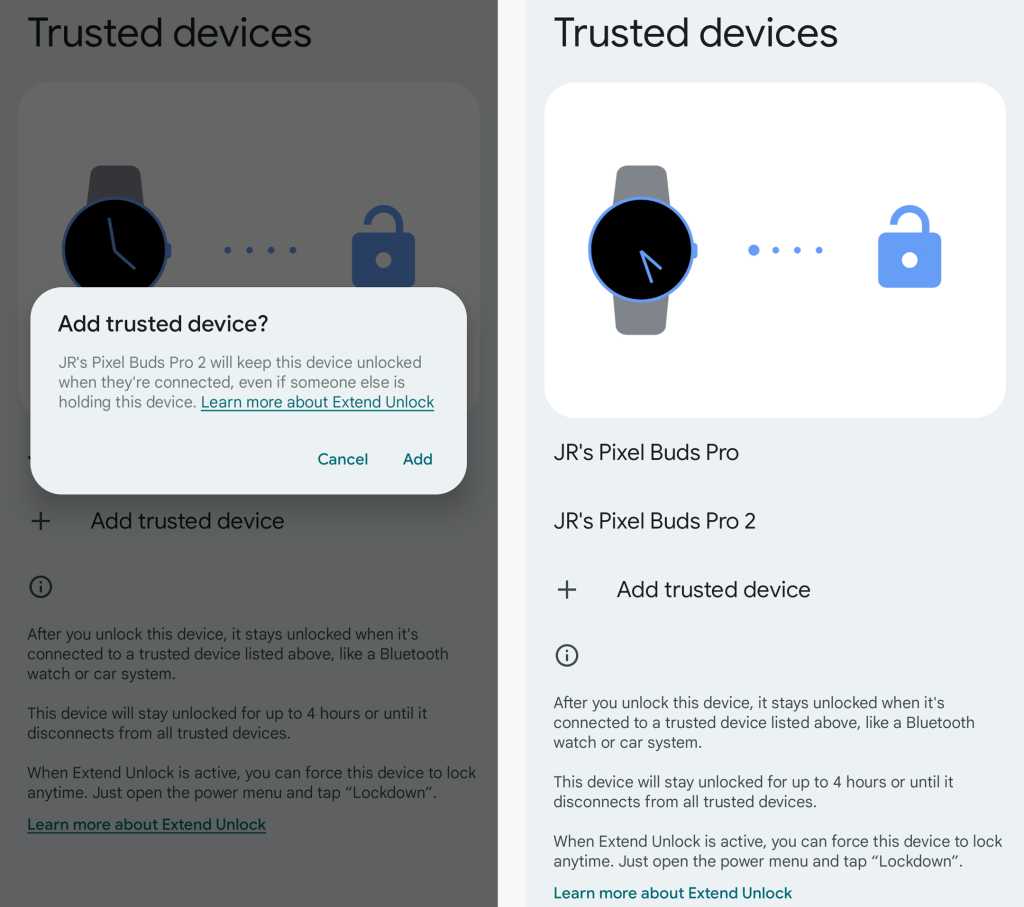
Turning off Smart Lock on Android stops your phone from bypassing security screens based on location or connected wearables. This process requires navigating your main Google Account settings rather than just local device menus.
Access Your Google Account Security
- Open the Settings application on your Android phone or tablet.
- Scroll down and tap the Google option in the list.
- Select Manage your Google Account to open the dashboard.
- Swipe across the top tabs until you reach the Security section.
Remove Trusted Devices and Places
- Locate the “Signing in to other apps” area and tap Smart Lock.
- Switch the toggle for Trusted devices to the off position.
- Tap Trusted places and disable any saved home or work locations.
- Exit the menu to ensure your changes save immediately to the cloud.
Note: Once disabled, your device will require a PIN, pattern, or biometric scan every time you unlock it or access certain apps.
Stop Auto Sign-In on Chrome Desktop
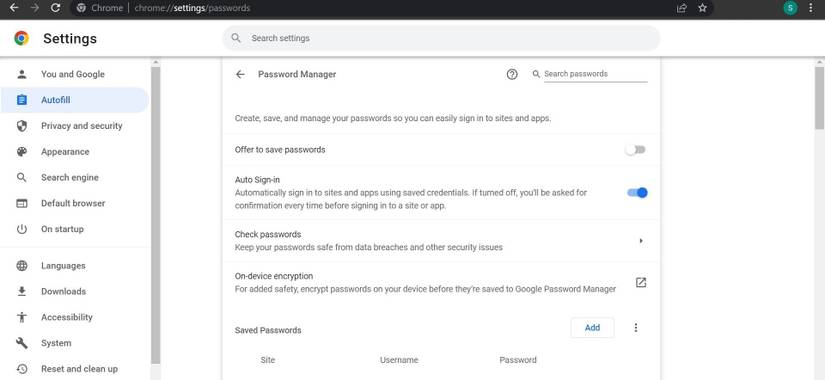
Chrome browsers on computers use password management features that mimic Smart Lock behavior by offering to save and auto-fill credentials. Disabling these stops the browser from logging you in without permission.
Adjust Password Autofill Settings
- Launch Google Chrome on your desktop or laptop computer.
- Click the three-dot menu icon located in the top-right corner.
- Select Settings from the dropdown list to open the configuration page.
- Click Autofill in the left sidebar and then choose Passwords.
Disable Saving and Auto-Sign In
- Find the toggle labeled Offer to save passwords and switch it off.
- Turn off the Auto-sign in option to prevent automatic form filling.
- Click Manage passwords to view your current list of stored credentials.
- Click the trash icon next to any entry to permanently delete specific logins.
Pro Tip: If you use a shared computer, clearing all saved passwords ensures no one else can access your accounts even if they open Chrome.
Manage Autofill Settings on iOS Devices

Apple iOS does not run Google Smart Lock directly, but the Chrome app on iPhone and iPad uses system-level password settings to autofill data. You must adjust both iOS settings and the Chrome app to fully stop this behavior.
Disable System-Wide AutoFill
- Tap the Settings app on your iPhone or iPad home screen.
- Scroll down the main list and select Passwords.
- Authenticate using Face ID, Touch ID, or your device passcode.
- Tap AutoFill Passwords and toggle the switch to the off position.
Configure Chrome App Specifics
- Open the Chrome app on your iOS device.
- Tap the three-dot menu and select Settings.
- Choose Passwords from the options list.
- Turn off Save passwords and Auto sign-in to stop local data retention.
Warning: Turning off system AutoFill affects Safari and other third-party apps that rely on the iOS keychain for login data.
Turn Off Smart Lock Features on Chromebook
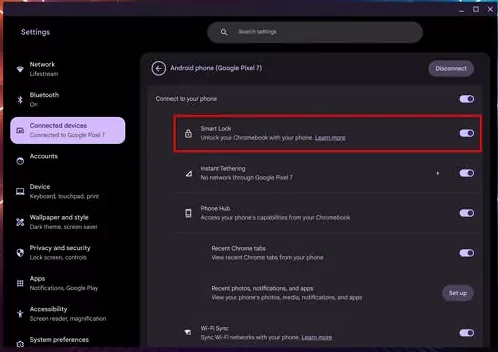
Chromebooks utilize Smart Lock to unlock automatically when your trusted Android phone is nearby. Disabling this feature forces the Chromebook to require a password at every startup.
Navigate to Chromebook Security
- Click the time display in the bottom-right corner to open the system tray.
- Select the Settings gear icon to open the main menu.
- Click Security and Privacy in the left-hand navigation panel.
- Locate and tap the Smart Lock option under the security heading.
Disable Trusted Connections
- Toggle off Trusted devices to stop your phone from unlocking the laptop.
- Disable Trusted places if you have previously saved your home location.
- Close the settings window to apply the changes instantly.
Security Note: After this change, losing your password means you cannot use your phone as a backup unlock method for the Chromebook.
Effects of Disabling Smart Lock Features
Turning off these features changes how you interact with your devices daily by removing automatic conveniences in favor of manual security checks.
Changes to Login Behavior
- You must manually type passwords for websites and applications.
- The browser will no longer suggest saving new credentials after login.
- Trusted devices like watches or phones will not bypass lock screens.
Impact on Shared Device Usage
- Family members cannot accidentally access your accounts via auto-fill.
- Public computers remain secure since no credentials are stored locally.
- Location-based unlocking ceases to function entirely.
Troubleshoot Persistent Smart Lock Issues
Sometimes settings do not update immediately, or old data causes the system to behave as if Smart Lock is still active. Use these steps to force a complete reset.
Resolve Lingering Autofill Data
Problem: Chrome continues to fill passwords despite toggles being off.
Solution:
1. Go to passwords.google.com in any browser.
2. Sign in with your Google Account credentials.
3. Manually delete entries one by one or use the remove all function.
4. Restart your browser to clear the local cache.
Fix Devices That Won’t Unlink
Problem: A trusted device still unlocks your account unexpectedly.
Solution:
– Ensure the device is connected to the internet to sync the new setting.
– Sign out of your Google Account on the trusted device completely.
– Revisit the Smart Lock menu and toggle the setting off a second time.
Delete Saved Passwords From Google Account
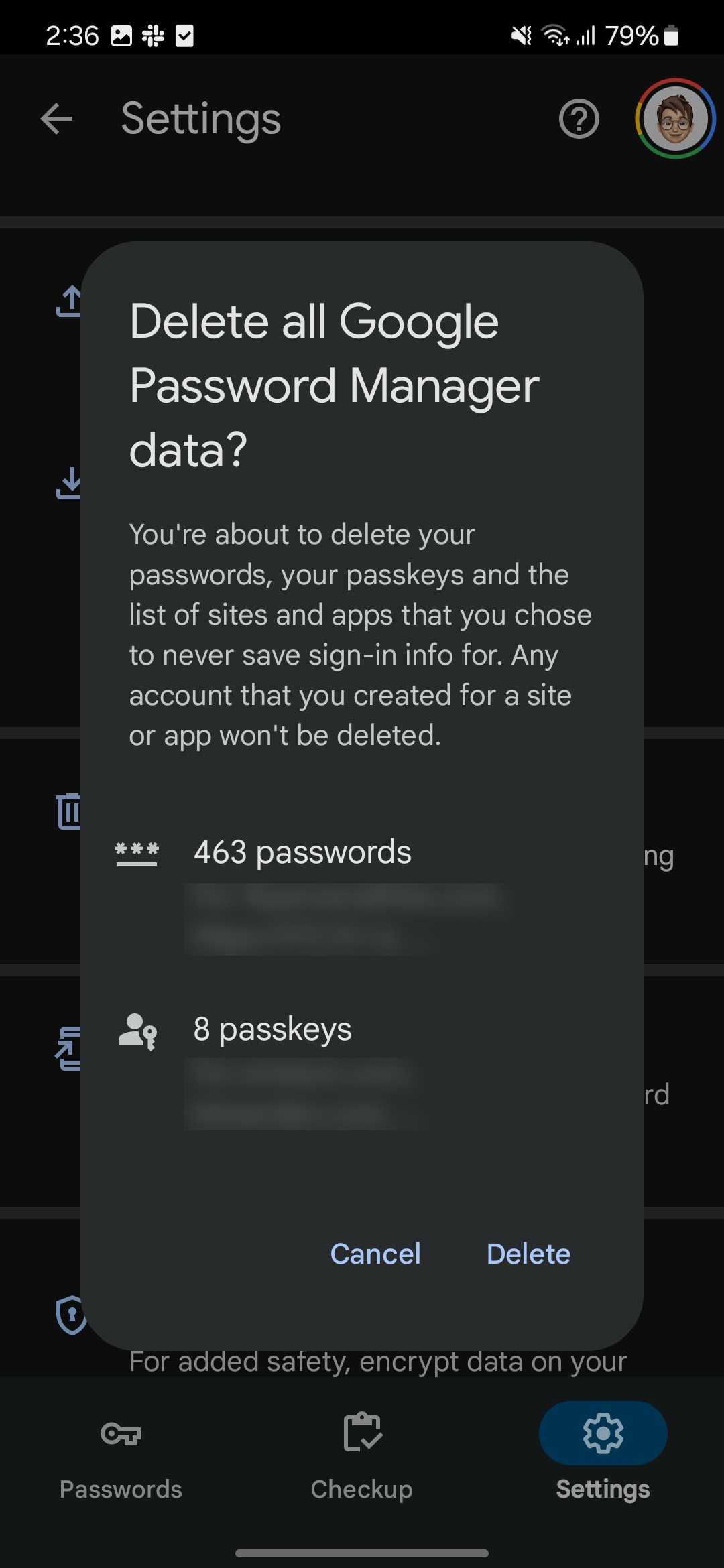
Smart Lock relies on the central password vault in your Google Account. Deleting data here ensures it disappears from every connected device instantly.
Access the Password Manager
- Navigate to passwords.google.com on a computer or mobile browser.
- Log in with the Google Account you wish to modify.
- Review the list of saved usernames and passwords displayed.
Remove Stored Credentials
- Click on any specific site entry to view details.
- Select the Remove button to delete that specific login.
- Repeat this process for all sensitive accounts you wish to protect.
- Consider exporting a backup copy before deleting everything permanently.
Critical: Deleting a password from this manager removes it from your phone, tablet, and computer simultaneously.
Decide If You Should Disable Smart Lock
Choosing to disable these features depends on your specific security needs and how you use your devices daily.
Reasons to Turn It Off
- You frequently use shared or public computers.
- You worry about physical theft of your unlocked devices.
- You prefer entering passwords manually for maximum control.
- You travel to unsafe locations where automatic unlocking is risky.
Reasons to Keep It Enabled
- You are the sole user of all your devices.
- You prioritize speed and convenience over manual entry.
- Your devices have strong biometric locks like fingerprint or face scan.
- You trust your home and work environments completely.
Prevent Smart Lock From Reactivating
Google may occasionally prompt you to re-enable saving passwords or trusting devices. You can minimize these interruptions with specific settings adjustments.
Block Chrome Prompts
- Open Chrome Settings and go to Privacy and security.
- Select Site Settings and scroll to Additional permissions.
- Ensure no sites have permission to handle protected content automatically.
- Clear browsing data regularly to remove temporary login cookies.
Reduce Service Recommendations
- Visit your Google Account Data & Personalization settings.
- Turn off activity controls related to device usage if available.
- Regularly review your security checkup to ensure no new trusted devices appear.
Frequently Asked Questions About Turning Off Smart Lock
Will turning off Smart Lock delete my saved passwords?
No, disabling the feature only stops automatic filling and unlocking. Your passwords remain saved in your Google Account unless you manually delete them from the password manager.
Can I still use fingerprint unlock on my phone?
Yes, disabling Smart Lock only affects trusted devices and places. Your primary screen lock methods like PIN, pattern, fingerprint, or face unlock will continue to work normally.
Does disabling Smart Lock on Android affect my Chromebook?
Yes, if you use your Android phone as a trusted device to unlock your Chromebook, that feature will stop working once you disable trusted devices in your account settings.
How do I stop Chrome from asking to save passwords?
Go to Chrome Settings, select Autofill, then Passwords, and toggle off the switch labeled Offer to save passwords to stop all future prompts.
Is it safer to have Smart Lock turned off?
It is safer for shared devices or if you fear physical theft, as it requires a password for every access attempt. For personal devices with strong biometrics, the risk difference is minimal.
What happens to my smart home devices if I turn this off?
Smart Lock for passwords does not control smart home hardware like door locks or lights. Those devices use separate apps and settings unrelated to this Google feature.
Key Takeaways for Turning Off Smart Lock Securely
Disabling Google Smart Lock gives you full manual control over your digital security by stopping automatic logins and trusted device access. You must adjust settings on Android, within Chrome, and on iOS individually to ensure complete coverage across all platforms.
Remember to delete saved passwords from your Google Account if you want to remove the data entirely rather than just stopping the autofill function. Take action today by visiting your Google Security settings to review and disable any trusted devices or locations you no longer need.