Leaving your car unsecured is a nightmare, but figuring out how to lock Tesla doors can feel confusing with so many digital options. Whether you rely on your phone, a key card, or automatic settings, knowing the right method ensures your vehicle stays safe.
This guide details every way to secure your Model 3, Y, S, or X using smartphones, RFID cards, and fobs. You will learn to enable Walk-Away Lock, troubleshoot connection errors, and set up advanced security features for total peace of mind.
Use Your Smartphone as a Digital Key
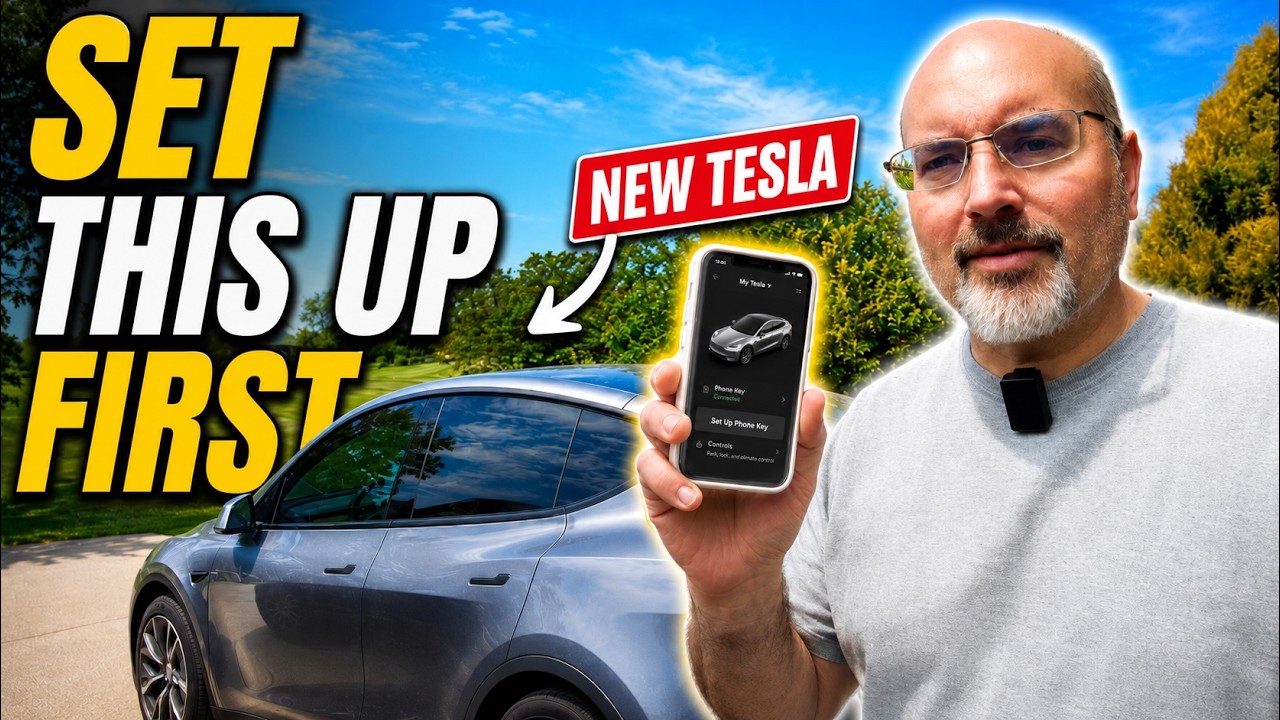
Your smartphone serves as the primary key for most Tesla owners. It uses Bluetooth Low Energy to communicate with the car, allowing for seamless locking and unlocking without touching a physical object.
Set Up Phone Key Authentication
You must link your device to the vehicle before it functions as a key.
1. Open the Tesla app and log in to your owner account.
2. Navigate to Settings and select Setup Phone as Key.
3. Tap Add and follow the on-screen verification prompts.
4. Swipe your physical key card over the center console sensor to confirm ownership.
Once paired, your phone acts as a digital credential. The car detects your presence automatically when Bluetooth is active.
Enable Walk-Away Lock Automation
Walk-Away Lock secures the vehicle the moment you leave its vicinity. This feature prevents the common mistake of forgetting to lock manually.
How to activate:
* Tap Controls on your touchscreen.
* Select Locks.
* Toggle Walk-Away Lock to the ON position.
When enabled, the side mirrors retract and a chirp sounds as you walk away. The system only engages if no authenticated phones remain inside the cabin.
Lock Remotely via App or Widget
If you are unsure if you locked the car, use the Tesla app for instant verification.
* Open the Tesla app and tap your vehicle image.
* Press the lock icon at the bottom of the screen.
* For faster access, add the Tesla widget to your phone home screen.
The widget allows one-tap locking within Bluetooth range. If you are far away, the command uses cellular data, which may take a few seconds to process.
Secure Your Car with the RFID Key Card
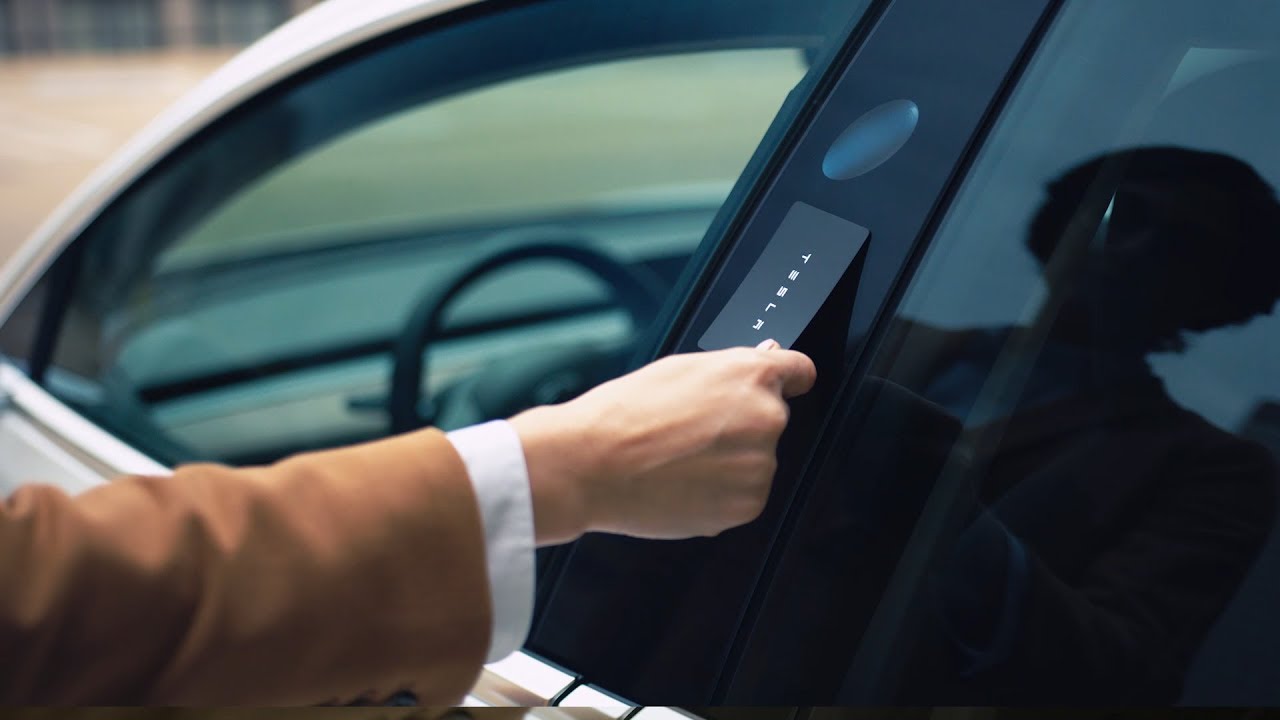
The RFID key card is a durable, battery-free backup included with every Tesla. It is essential when your phone battery dies or Bluetooth fails.
Perform the B-Pillar Swipe Method
Locking with the card requires physical proximity to the driver’s side door frame.
1. Locate the B-pillar sensor on the driver’s side door frame.
2. Align the card so the chip indicator faces the sensor.
3. Hold it steady until the mirrors retract.
Mirror retraction is your visual confirmation that the car is secure. This method works even if the car battery is low, as the card requires no power.
Store a Backup Card Inside the Vehicle
Storing a spare key card in the glove box is a smart security strategy. Since the card is passive, it cannot trigger the car to unlock from the inside.
This creates a reliable fail-safe. If you lose your phone and fob, you can still access the vehicle by retrieving the card from the glove box through the frunk or by contacting support for remote assistance.
Operate the Optional Physical Key Fob

Tesla sells a physical key fob separately for drivers who prefer traditional buttons. It offers a tangible way to lock the car without using a screen or phone.
Press the Lock Button for Instant Security
The fob operates independently of your smartphone.
* Press the center lock button once.
* Observe the mirrors retracting to confirm the lock.
* Use the dedicated trunk or frunk buttons for specific access.
This method is ideal for handing the car to a valet or family member without giving them full app access.
Replace the Fob Battery Periodically
The fob runs on a standard CR2032 coin cell battery. If the range decreases or buttons stop responding, replace the battery immediately.
1. Slide the release tab on the fob to open it.
2. Swap the old battery for a new CR2032.
3. Test the fob to ensure it pairs correctly.
Keep a spare battery in your glove box to avoid being locked out due to power loss.
Lock Doors from the Interior Touchscreen
When you are inside a Model 3 or Model Y, the central touchscreen provides direct control over all door locks.
Tap the Lock Icon on Screen
Securing the car from the inside is a single-step process.
1. Find the car icon or lock symbol on the left control panel.
2. Tap the lock icon displayed on the screen.
3. Verify that all door indicators show as locked.
This action locks every door and the trunk simultaneously. It works whether the car is on or off.
Verify Visual Lock Indicators
Always confirm the lock status visually before exiting.
* Check that side mirrors are folded.
* Ensure the screen shows locked door icons.
* Listen for the confirmation chirp if enabled.
Do not assume the car is locked just because you tapped the screen. Visual confirmation prevents errors.
Configure Auto-Lock Settings for Driving

Tesla offers specific settings to lock doors automatically while you drive, adding a layer of safety for solo travelers or those in high-risk areas.
Activate Drive-Shift Auto-Lock
This feature locks doors the moment you shift into Drive.
1. Go to Controls > Doors on the touchscreen.
2. Find the Auto Lock option.
3. Switch the setting to ON.
Now, every time you start moving, the car secures itself. This is perfect for drivers who forget to lock manually before departing.
Understand Driver Door Unlock Mode
For enhanced security, you can restrict unlocking to the driver’s door only.
* Navigate to Controls > Locks.
* Enable Driver Door Unlock Mode.
When active, approaching the car unlocks only the driver’s side. You must be inside to unlock passenger doors, preventing unauthorized entry from the other side.
Integrate Apple Watch for Wrist Access
Apple Watch owners can lock their Tesla directly from their wrist using the Shortcuts app. This is faster than pulling out a phone.
Create a Tesla Lock Shortcut
Set up the command on your iPhone first.
1. Open the Shortcuts app on your iPhone.
2. Search for Tesla in the action library.
3. Select Lock Car as the action.
4. Tap the “i” icon and enable Show on Apple Watch.
Once configured, open the Shortcuts app on your watch and tap the lock command. It works via Bluetooth when your phone is nearby.
Customize Lock Sounds and Chimes

Personalize your locking experience by changing the default chime to a custom sound like a holiday theme or UFO noise.
Install Custom WAV Files via USB
You need a USB drive and a specific audio file format.
* Format a USB drive to FAT32.
* Save a WAV file under 1 MB named exactly lock chime.
* Place the file in the root folder of the drive.
Insert the drive into the car. Go to Controls > Sound > Lock Sound to select your new chime. The custom sound plays whenever you lock or unlock.
Troubleshoot Common Locking Failures
Even advanced systems encounter glitches. Here is how to diagnose and fix common locking issues.
Diagnose Why the Car Won’t Lock
If your Tesla refuses to lock, check these common culprits:
* A door is ajar: Ensure all doors, the trunk, and frunk are fully closed.
* Key inside: An authenticated phone left inside prevents auto-locking.
* Bluetooth issues: Toggle Bluetooth off and on your phone.
* App glitch: Force close the Tesla app and reopen it.
Try using the key card to isolate the problem. If the card works, the issue lies with your phone’s connectivity.
Clear Obstructions in Door Jams
Debris or ice can prevent the latch from engaging.
1. Inspect the door jamb for clothing or dirt.
2. Wipe away any ice or moisture.
3. Close the door firmly and retry the lock command.
Electronic sensors cannot engage if the mechanical latch is blocked.
Frequently Asked Questions About Locking Tesla Doors
Can I lock my Tesla if my phone battery is dead?
Yes, you can use the included RFID key card or a physical key fob. The key card requires no battery and works by swiping the B-pillar sensor. This ensures you are never stranded if your phone loses power.
Why does my Tesla chirp when I lock it?
The chirp confirms the car has successfully locked and the mirrors have retracted. You can adjust or disable this sound in the Controls > Safety & Security menu if you prefer a silent lock process.
Does Walk-Away Lock work if I leave my phone inside?
No, the car will not lock if it detects an authenticated phone inside the cabin. This safety feature prevents you from accidentally locking your key (phone) inside the vehicle. You must take the phone with you.
How do I know if my Tesla is actually locked?
Look for the retracted side mirrors as the primary visual cue. Additionally, the Tesla app will display a locked icon, and the touchscreen will show locked door indicators if you look back inside.
Can someone unlock my Tesla remotely without permission?
Only devices paired to your Tesla account can unlock the vehicle. Enabling Driver Door Unlock Mode adds extra protection by limiting initial access to the driver’s side only, preventing unauthorized passenger entry.
Key Takeaways for Mastering Tesla Door Security
Securing your vehicle is simple once you understand the available tools. Your smartphone offers the best daily convenience, while the RFID key card provides a vital battery-free backup. Enabling Walk-Away Lock and Drive-Shift Auto-Lock ensures you never leave your car vulnerable due to forgetfulness.
Take action today by testing your primary locking method and verifying your backup card works. Store a spare card in the glove box and enable driver-only unlock mode for maximum safety. With these steps, your Tesla remains secure wherever you go.