You set the perfect temperature, only to find it changed moments later by a curious child or guest. This constant battle wastes energy and ruins your comfort levels instantly. Learning how to lock a thermostat stops these unwanted adjustments dead in their tracks.
This guide shows you exact steps for Honeywell, Nest, and Ecobee models to secure your settings. You will discover menu shortcuts, PIN codes, and app tricks to maintain total control.
Access Thermostat Settings Menus Directly
Most locking functions hide deep within the device interface rather than on the main screen. You must navigate specific menus to find security features before enabling any restrictions.
Locate the Main Menu Button
Find the button labeled Menu, Settings, or a gear icon on your device face. Press and hold this button for three seconds if a single tap does not open the configuration page. Touchscreen models often require a firm tap on the corner icon to activate the system menu.
Navigate to Security Preferences
Scroll through the list using arrow keys or the navigation ring until you see Lock, Child Lock, or Keypad Lock. Some brands bury this feature under Preferences, System, or Security sub-menus. Consult your specific manual if the option remains hidden after a thorough search.
Lock Honeywell Thermostat Models Securely
Honeywell offers diverse locking methods depending on whether you own a smart T-series or an older RTH model. Identifying your specific unit type ensures you use the correct button combination.
Secure T4, T5, and T9 Series Units
- Press the Menu button on the front panel.
- Use arrow keys to highlight Preferences and press Select.
- Scroll down to Keypad Lock and choose On.
- Exit the menu to activate the restriction immediately.
The keypad becomes unresponsive to touch until you reverse these steps. This prevents anyone from changing the temperature without your permission.
Activate Lock on RTH Non-Programmable Models
- Press and hold the Up and Down arrow buttons together.
- Keep them held for five seconds until a lock icon appears.
- Watch for an “L” symbol on the display to confirm success.
Repeat this same button combination to unlock the device when needed. This physical shortcut works even on older units without digital menus.
Lock Nest Thermostat Temperature Settings
Google Nest devices use Schedule Lock and Temperature Lock instead of a traditional keypad lock. These features prevent schedule changes or limit temperature range adjustments effectively.
Enable Schedule Lock via App
- Open the Google Home app on your mobile device.
- Tap your Nest thermostat icon to access controls.
- Go to Settings > Nest Sense > Heat Link.
- Toggle Schedule Lock to the on position.
This setting stops users from altering the programmed schedule on the device. It is perfect for landlords who want to maintain efficient heating cycles.
Set Temporary Temperature Lock
- Twist the outer ring on the thermostat to your desired temperature.
- Press and hold the display screen until a lock icon appears.
- Select Lock to confirm the temperature range restriction.
The device now allows changes within only a 0.5°F range of your set point. Hold the screen again and follow prompts to remove this temporary restriction.
Lock Ecobee Thermostat Keypads Remotely

Ecobee thermostats feature a dedicated Keypad Lockout mode that disables all physical buttons on the unit. This ensures settings remain stable while allowing remote management.
Enable Keypad Lockout Feature
- Press the Menu button on the thermostat face.
- Navigate to Settings > Preferences > Keypad Lockout.
- Select On and enter your four-digit PIN when prompted.
- Look for the lock icon on the screen to verify activation.
The physical buttons will not respond to touch while this mode is active. You can still control the system remotely via the smartphone application.
Disable Lock Using Mobile App
Open the Ecobee app and select your specific thermostat device. Go to Settings, find Keypad Lockout, and switch it to off. This remote capability is ideal for rental properties where you manage access from afar.
Lock Generic Programmable Thermostats
Unbranded or basic programmable thermostats often use universal button combinations to engage lock modes. These standardized shortcuts work across many different manufacturers.
Try Universal Button Combinations
Many generic units respond to these specific key presses:
* Hold Menu and Up Arrow together for five seconds.
* Press and hold Hold and Fan buttons simultaneously.
* Hold Left and Right navigation buttons at the same time.
Watch the screen closely for a padlock symbol or the letter “L” to appear. This visual cue confirms the lock is active and protecting your settings.
Check for Physical Lock Switches
Inspect the sides or back of older thermostat models for a tiny sliding switch. These switches may be labeled Lock, Edit, or Hold to prevent input. Flip the switch to the lock position to disable all button functions immediately.
Unlock Thermostat When Access Is Needed
Knowing how to reverse the lock is just as important as setting it initially. You may need to adjust temperatures for special occasions or maintenance checks.
Enter PIN Code to Unlock
Some models require a four-digit PIN to解除 the lock feature completely. Try default codes like 1234, 0000, or 1111 if you never set a custom one. Contact manufacturer support if these standard codes fail to work.
Use App to Remove Restrictions
Smart thermostats from Nest and Ecobee allow you to unlock the device through their mobile apps. This method helps when the physical unit is out of reach or hard to access.
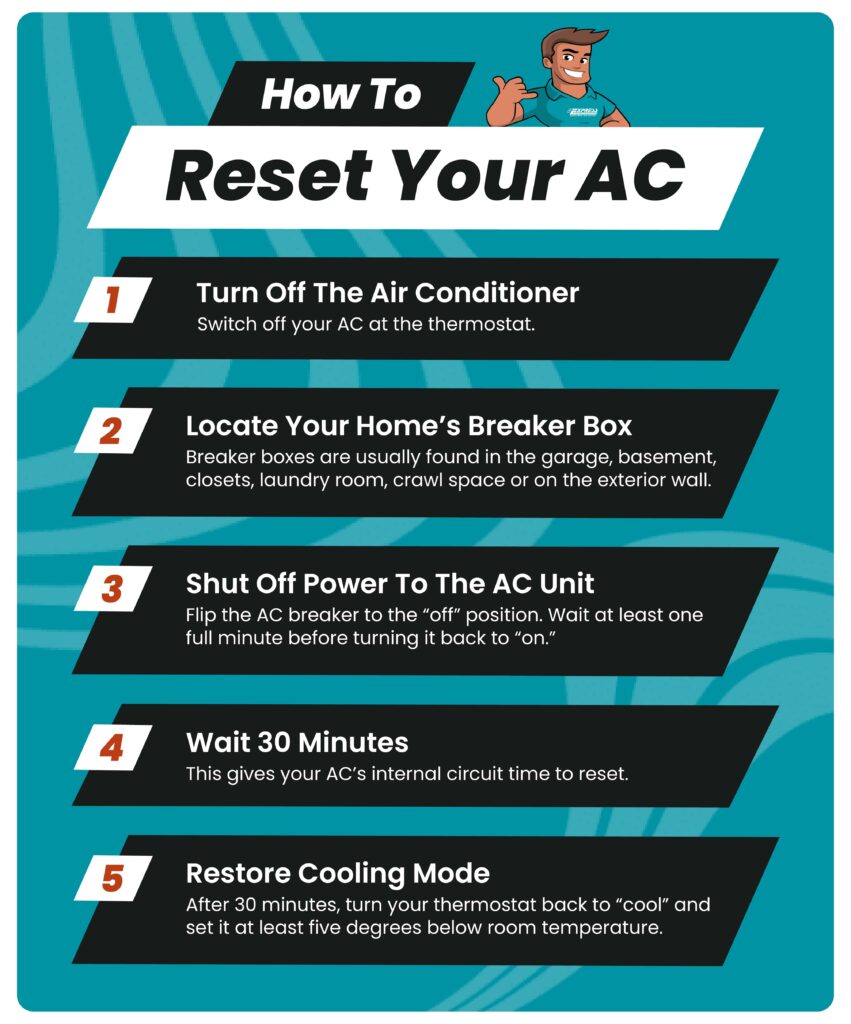
Reset Device If Locked Out
- Turn off the HVAC breaker to cut power to the thermostat.
- Wait thirty seconds before restoring power to the unit.
- Allow the device to reboot and check if settings reset.
Warning: This process erases custom schedules and preferences permanently. Use this only as a last resort when other methods fail.
Prevent Accidental Temperature Changes
A digital lock is powerful, but combining it with other strategies ensures maximum stability for your home climate.
Secure Smart Home Permissions
Restrict app access on Wi-Fi enabled models to prevent remote tampering. Remove unnecessary users from the thermostat app and enable two-factor authentication. Disable guest access features to stop visitors from changing settings via their phones.
Label the Thermostat Clearly
Place a small, polite sign near the unit stating “Temperature Locked – Do Not Adjust.” This visual reminder often deters curious family members or guests more effectively than technology alone.
Troubleshoot Thermostat Lock Issues
Lock features sometimes fail to activate or disappear unexpectedly due to software glitches or power issues.
Resolve Grayed Out Lock Options
If you cannot select the lock option, ensure you are in Admin or Manager mode. Check for pending software updates that might be blocking security features. Restart the thermostat completely and attempt to enable the lock again.
Fix Disappearing Lock Icons
A lock icon that vanishes usually indicates a low battery or recent power surge. Replace the batteries immediately if your model uses them. Re-enable the lock feature and monitor the device for recurring stability issues.
Frequently Asked Questions About Locking Thermostats
Can I lock my thermostat without a PIN code?
Yes, many models allow you to enable a basic lock without setting a PIN. However, smart thermostats often require a code for added security against unauthorized changes.
Will locking the thermostat stop remote app control?
No, keypad locks typically only disable physical buttons on the device itself. You can usually still adjust settings remotely via the manufacturer’s smartphone app.
What is the default PIN for most thermostats?
Common default PINs include 1234, 0000, or 1111. Check your specific user manual for the exact default code for your brand and model.
Does a power outage remove the thermostat lock?
Most modern thermostats retain lock settings in memory during short outages. However, a hard reset or battery removal might revert the device to factory defaults.
Can guests override the temperature lock on Airbnb rentals?
Guests cannot override a properly enabled keypad lock on the device itself. They may still change settings via the app if you have shared access credentials with them.
Key Takeaways for Locking Your Thermostat
Mastering how to lock a thermostat saves energy and maintains comfort by preventing unauthorized adjustments. Whether you use Honeywell, Nest, or Ecobee, the process involves accessing specific menus or using button shortcuts. Always record your PIN code in a safe place to avoid being locked out of your own system.
Start by identifying your model type and testing the lock feature today. Secure your climate settings now to enjoy consistent temperatures and lower utility bills immediately.