Does your keyboard type lowercase letters when Caps Lock is on or refuse to turn off? You might be frustrated by a stuck key or a dead indicator light that makes typing a nightmare. These common Windows glitches often stem from simple settings rather than broken hardware. Learning how to fix caps lock issues can save you time and the cost of a new keyboard.
This guide provides immediate steps to reset your keyboard state and correct reversed output. You will learn to disable conflicting accessibility features and update drivers causing the problem. We cover specific fixes for stuck keys and non-functioning lights using proven methods. Follow these instructions to restore normal typing behavior quickly.
Identify Your Specific Caps Lock Symptom

Diagnosing the exact behavior helps you apply the correct solution immediately. Users typically face three distinct problems requiring different approaches.
Reversed Output Behavior
Your keyboard types lowercase when the lock is active and uppercase when it is not. This confusing reversal usually indicates a software conflict.
* Sticky Keys or Filter Keys are likely enabled.
* Accessibility features may override standard input.
* Driver conflicts can cause signal misinterpretation.
Stuck Key State
The key activates but will not deactivate when pressed again. This often feels like a physical jam but is usually a setting error. Windows may be using the key to switch language layouts instead of toggling case.
Non-Functioning Indicator Light
The key functions correctly for typing, yet the LED remains dark or stays lit permanently. This suggests a driver glitch or a corrupted system file. Physical damage is possible but less common than software errors.
Execute Immediate Reset Shortcuts
Try these fast solutions before diving into complex settings. They resolve many temporary glitches in seconds.
Use the Universal Reset Combination
Press Ctrl + Shift + Caps Lock simultaneously. This built-in Windows command forces the system to re-evaluate the keyboard lock state.
* It clears temporary software conflicts.
* It resets reversed case output instantly.
* It requires no administrative access.
This method works for most users experiencing sudden behavioral changes. If this fails, proceed to check for hidden key states.
Detect Hidden Stuck Shift Keys
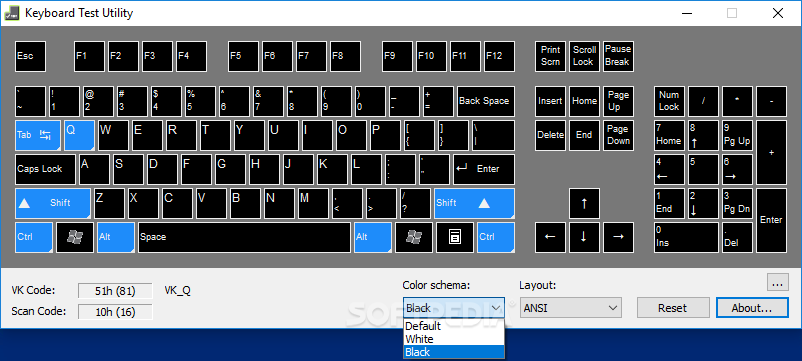
A stuck Shift key can invert Caps Lock behavior even if the physical key feels fine. Use the On-Screen Keyboard to verify the actual state.
- Press
Windows + Rto open the Run dialog. - Type
oskand hit Enter. - Observe the virtual keyboard on your screen.
- Look for the Shift key highlighted in blue.
- Click the highlighted key once to release it.
- Test your physical Caps Lock key again.
The virtual interface reveals software-level stuck states that physical inspection misses. If the Shift key highlights repeatedly, you likely have a deeper driver issue.
Correct Reversed Typing Behavior
Follow these steps if your letters appear in the wrong case when the lock is active.
Run the Built-in Diagnostic Tool
Windows includes a specialized troubleshooter for keyboard anomalies.
- Press
Windows + Xand select Run. - Paste this command:
msdt.exe -id KeyboardDiagnostic. - Click OK to launch the tool.
- Select Advanced and check Apply fixes automatically.
- Follow the on-screen prompts to completion.
- Restart your computer to apply changes.
This utility scans for configuration errors and driver mismatches automatically. It often resolves issues without manual intervention.
Disable Interfering Accessibility Features
Sticky Keys and Filter Keys can mimic hardware failures by altering input logic.
- Open Settings by pressing
Windows + I. - Navigate to Accessibility then Keyboard.
- Toggle Sticky Keys to Off.
- Toggle Filter Keys to Off.
- Close the window and test your typing.
These features are designed to help users with motor difficulties but often cause chaos for standard typists. Disabling them ensures your key presses register normally.
Clear Legacy Typing Assistant Settings
Older control panel settings may still override modern configurations.
- Press
Windows + R, typecontrol, and press Enter. - Go to Ease of Access Center.
- Click Make the computer easier to use.
- Uncheck all options under Make it easier to type.
- Click Apply and then OK.
Re-enabling and then disabling these options can reset their internal state effectively. This step is crucial if modern settings did not solve the problem.
Resolve Stuck Caps Lock Key Issues
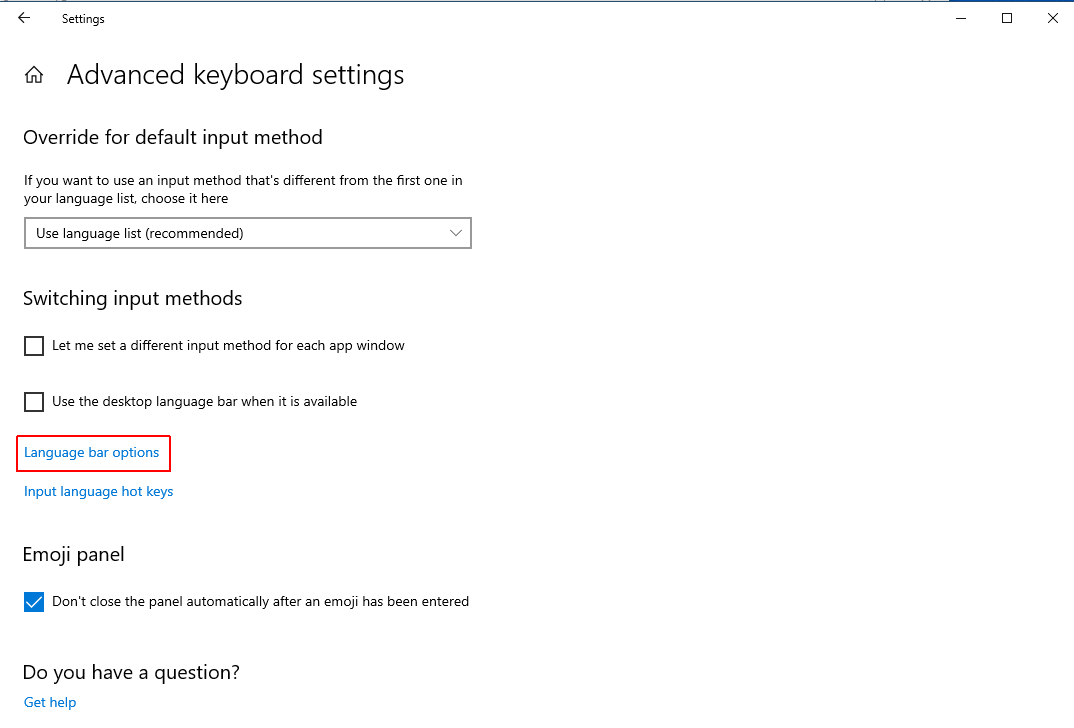
If the key turns on but refuses to turn off, adjust your advanced keyboard settings.
Configure Advanced Keyboard Options
This specific setting causes the “stuck” feeling on multi-language systems.
- Open Settings via
Windows + I. - Go to Time & Language then Typing.
- Click Advanced keyboard settings under Related settings.
- Select Language bar options.
- Navigate to the Advanced key settings tab.
- Find the option regarding using Caps Lock to switch layouts.
- Change it to Press the Caps Lock key to turn off the Caps Lock key.
- Click Apply and OK.
This configuration ensures the key acts as a standard toggle rather than a layout switcher. Most users with this issue see immediate results after this change.
Repair Non-Working Indicator Lights
Address LED failures by checking hardware and updating system components.
Inspect for Physical Damage
Examine your keyboard closely for signs of wear or trauma.
* Look for broken keycaps or debris under keys.
* Check for liquid spill residue.
* Identify any worn-out components.
Physical damage often requires hardware replacement rather than software fixes. If the keyboard is damaged, no amount of coding will fix the light.
Update or Reinstall Keyboard Drivers
Corrupted drivers frequently cause indicator light failures.
- Right-click the Start button and choose Device Manager.
- Expand the Keyboards section.
- Right-click your keyboard device.
- Select Update driver and choose automatic search.
- If that fails, select Uninstall device and restart your PC.
Windows will attempt to reinstall the fresh driver upon reboot. This process clears out corrupted files affecting the LED functionality.
Run System File Checker
Corrupted Windows system files can prevent peripheral indicators from working.
- Press
Windows + R, typecmd, and press Enter. - In the command window, type
sfc /scannow. - Wait for the scan to finish.
- Follow any repair instructions displayed.
This tool verifies the integrity of all protected system files. It replaces corrupted versions with healthy copies from the Windows cache.
Final Thoughts on Fixing Caps Lock Problems
Most how to fix caps lock queries stem from simple configuration errors rather than broken hardware. You can often resolve reversed output or stuck keys by resetting the key state or adjusting accessibility settings. Updating drivers and running diagnostic tools handles the remaining software glitches effectively.
Take action by trying the Ctrl + Shift + Caps Lock shortcut first. If that fails, follow the specific section matching your symptom to restore full keyboard functionality today.
Frequently Asked Questions About Caps Lock Issues
Why does my Caps Lock type lowercase when it is on?
This reversed behavior usually occurs because Sticky Keys or Filter Keys are enabled. It can also result from a stuck Shift key state detected by the On-Screen Keyboard. Disabling these accessibility features typically resolves the issue immediately.
How do I stop Caps Lock from staying on permanently?
Your system likely uses Caps Lock to switch keyboard layouts instead of toggling case. Go to Advanced Keyboard Settings and change the option to use the key strictly for turning Caps Lock on and off.
What causes the Caps Lock light to stop working?
The LED may fail due to outdated drivers, corrupted system files, or physical damage. Running the Keyboard Troubleshooter or updating your drivers often restores the light.
Can a virus cause Caps Lock problems?
While rare, malware can interfere with keyboard inputs. However, most issues arise from accidental setting changes or driver conflicts. Run a security scan if standard troubleshooting steps fail.
Do I need to replace my keyboard for these errors?
Most Caps Lock problems are software-based and fixable without new hardware. Only consider replacement if you find physical damage or if the keyboard fails on multiple computers.