Your Android phone stays unlocked around trusted devices or locations using a feature called Smart Lock, but this convenience often creates unexpected security gaps for many users. If you are searching for how to uninstall Smart Lock, you likely want to remove this automatic access entirely to protect your personal data.
This guide explains exactly how to disable every Smart Lock setting since you cannot delete the system feature like a regular app. You will learn to remove trusted faces, voices, places, and devices to ensure your phone remains locked until you manually unlock it.
Access Lock Screen Settings to Disable Smart Lock
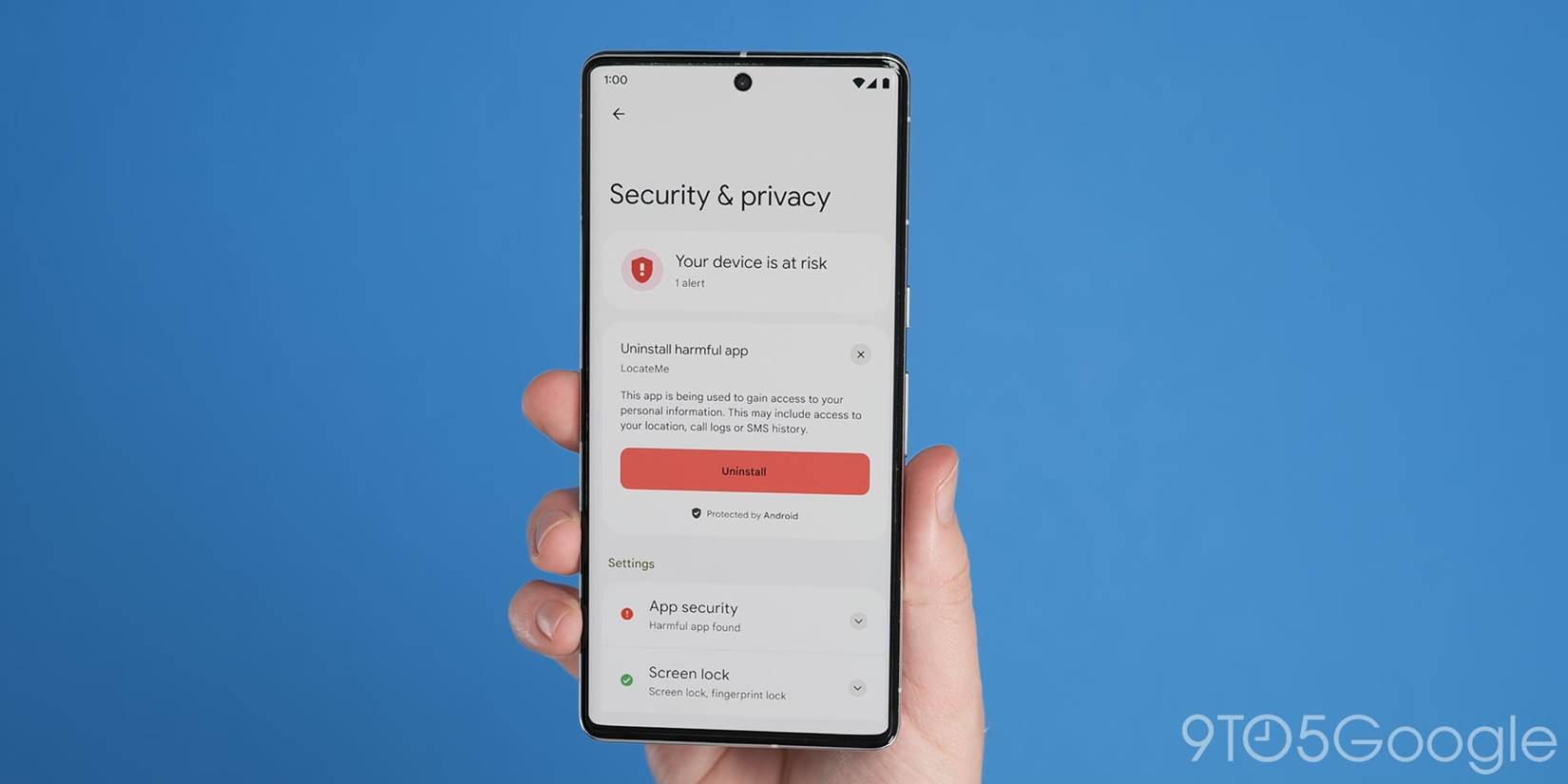
You must navigate to the correct security menu before you can turn off any Smart Lock features on your device. The exact path varies slightly between manufacturers like Samsung, Google Pixel, and OnePlus, but the core steps remain similar across Android versions.
Open Security & Privacy Menu
Launch your Settings app and scroll down to find Security or Security & Privacy. Some devices label this section Biometrics and Security or place it directly under Lock Screen settings.
Samsung users often find these options under Biometrics and Security > Other Security Settings. Pixel owners typically navigate to Security > Device Security > Screen Lock to access the same controls.
Locate Smart Lock Options
Look for the Smart Lock option within your security menu to proceed with disabling the feature. Android requires you to enter your current PIN, pattern, or password before allowing changes to these critical security settings.
Tap Smart Lock to view active trusted conditions that currently bypass your lock screen. You will see a list containing items such as:
* On-body detection
* Trusted face
* Trusted voice
* Trusted places
* Trusted devices
Disable Each Smart Lock Method Step by Step
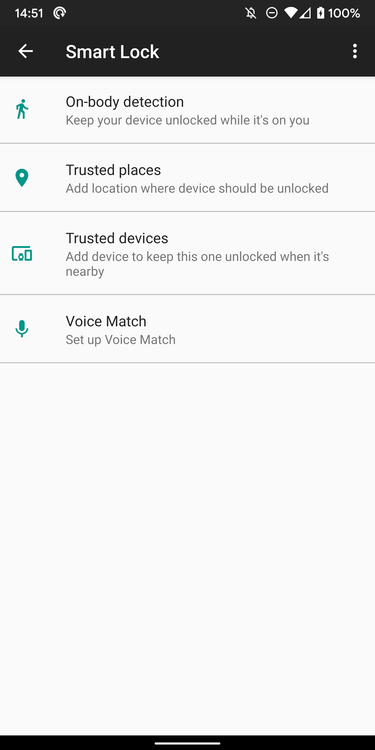
You must turn off every single enabled method to fully deactivate Smart Lock on your phone. Leaving even one trusted condition active means your device could still unlock automatically under specific circumstances.
Turn Off Trusted Face Recognition
Select Trusted Face from the list and tap Turn Off to remove facial recognition as an unlock method. This action deletes the stored face model used for automatic unlocking.
Note: Face unlock is generally less secure than a PIN or fingerprint. Disabling it prevents others who resemble you from accessing your device.
You will not need to retrain your face model later unless you deliberately choose to re-enable this feature.
Stop Trusted Voice Detection
Tap Trusted Voice and toggle the switch to the off position immediately. This stops your phone from unlocking when it detects your voice saying phrases like “OK Google.”
Disabling this feature halts background voice monitoring processes. This change can also help preserve your battery life by reducing microphone usage.
Remove Trusted Places
Select Trusted Places and delete every saved location such as your home or workplace. You can remove each entry individually by swiping left on the name or tapping the trash icon.
The option will gray out or disappear once you delete all saved locations. Your phone will no longer stay unlocked when you arrive at these specific geographic spots.
Unpair Trusted Devices
Review the list under Trusted Devices to see connected Bluetooth or Wi-Fi items like smartwatches or car systems. Tap each device and select Remove or Unpair to stop automatic unlocking.
Pro Tip: Do not confuse this with unpairing via standard Bluetooth settings. You must disable the trust specifically within the Smart Lock menu.
Restart your phone first if a specific device refuses to disconnect from the trusted list.
Disable On-Body Detection
Tap On-body detection and switch it off to stop motion-based unlocking. This prevents your phone from assuming it is safe just because it senses movement while in your pocket.
Many users report this setting causes accidental unlocks during daily transit. Turning it off ensures your phone locks immediately when the screen turns off.
Change Your Screen Lock Method Securely

Android requires a fallback security method after you disable all Smart Lock options. Your device will prompt you to set a new screen lock type to ensure your data remains protected.
Set a Secure Lock Type
Navigate to Settings > Security > Screen Lock to choose your preferred protection method. Consider the following options based on your security needs:
* PIN: Offers a good balance of speed and security
* Pattern: Easy to enter but visible to observers
* Password: Most secure option but takes longer to type
* Fingerprint: Fast and secure if your sensor functions reliably
Warning: Avoid selecting “None” or “Swipe” as these offer zero real protection for your data.
Confirm Lock Screen Preference
Enter your current credentials to verify your identity before setting the new method. Follow the on-screen prompts to create and confirm your new PIN, pattern, or password.
Your phone will now lock every time the screen turns off without exception. No trusted conditions will bypass this requirement anymore.
Alternative: Factory Reset for Full Removal
A factory reset is the most thorough way to erase all Smart Lock data including stored face models and voice profiles. Use this method if you need a completely clean slate for your device.
When to Use Factory Reset
Consider this step if you are selling your phone or suspect unauthorized access. It is also useful if Smart Lock settings are malfunctioning and refuse to disable normally.
This process wipes all user data and restores the device to its original factory state.
Perform the Reset
Go to Settings > System > Reset Options > Erase All Data (Factory Reset) to begin. Confirm the action and wait five to ten minutes for the process to complete.
Important: Back up your photos, contacts, and apps before proceeding. You cannot undo this action once it starts.
Set up your phone as a new device after rebooting and skip any Smart Lock setup prompts.
Troubleshooting Common Smart Lock Issues
Smart Lock options sometimes behave unexpectedly or fail to disable properly on certain devices. Here are solutions for frequent problems users encounter during this process.
Smart Lock Option Missing
You might not see Smart Lock in your settings if your manufacturer removed it. Older Samsung models or specific Android versions may not support this feature at all.
Try updating your operating system or checking under Google Settings > Security. Work profiles or screen pinning features can also block access to these settings.
Trusted Device Keeps Reappearing
Some Bluetooth devices automatically reconnect and reappear in your Smart Lock list. Earbuds and watches often trigger this behavior upon connection.
To stop this permanently:
1. Disable Smart Lock completely
2. Unpair the device in Bluetooth Settings
3. Turn off Bluetooth auto-connect features
This prevents the device from re-establishing trust status automatically.
Phone Still Unlocks Automatically
Your phone might still bypass the lock screen if cached settings remain active. Restart your device to clear any lingering configuration data.
Check for third-party automation apps like Tasker that might mimic Smart Lock behavior. Disable Adaptive Lock or Face Match specifically on Samsung devices if the issue persists.
Security & Privacy Benefits of Disabling
Turning off Smart Lock significantly enhances your overall mobile security posture. Removing these automatic unlock features reduces risks associated with unauthorized access.
Reduce Unauthorized Access Risk
Smart Lock methods like trusted face or voice can sometimes be fooled by photos or recordings. Removing these ensures only someone with your PIN or fingerprint gains access.
Prevent Background Data Use
Trusted face and voice detection run continuously in the background using camera and microphone resources. Turning them off improves privacy and reduces unnecessary battery drain.
Simplify Lock Screen Behavior
Your phone behaves predictably with Smart Lock off. It stays locked when the screen is off and unlocks only with your direct credentials.
Final Recommendations for Android Security
You have successfully learned how to uninstall Smart Lock functions to secure your device. Implement these final best practices to maintain strong protection.
Use Strong Authentication
Opt for a 6-digit PIN or alphanumeric password instead of simple codes. Combine this with fingerprint scanning if your device supports it.
Enable Find My Device
Ensure Find My Device is active so you can locate or erase your phone remotely. This provides a safety net if your device ever gets lost.
Review App Permissions
Limit camera, microphone, and location access for non-essential apps. This complements your decision to disable automatic unlocking features.
Frequently Asked Questions About Smart Lock Removal
Can I completely uninstall Smart Lock like a regular app?
No, you cannot uninstall Smart Lock because it is built into the Android operating system. You can only disable all its features through the security settings menu.
Will disabling Smart Lock delete my saved passwords?
No, turning off Smart Lock will not delete your saved passwords or other data. It only stops your phone from unlocking automatically based on trusted conditions.
Does removing Trusted Face delete my facial data?
Yes, turning off Trusted Face removes the stored facial model from your device. You would need to set it up again if you decide to use it later.
Why does my trusted device keep coming back?
Some Bluetooth devices automatically reconnect and re-trigger the trust status. You must unpair them in both Smart Lock settings and standard Bluetooth menus.
Is my phone less convenient without Smart Lock?
Your phone requires manual unlocking every time, which adds a small step to your routine. However, this significantly increases security by preventing accidental or unauthorized access.
Key Takeaways for Disabling Smart Lock
You cannot technically uninstall Smart Lock, but you can fully disable every feature to stop automatic unlocking. Removing trusted faces, voices, places, and devices ensures your phone stays secure until you manually enter your credentials.
Take action today by navigating to your security settings and turning off each Smart Lock method. This simple process gives you full control over your device access and protects your personal information from unauthorized users.