Struggling with camera constraints while building your next Roblox experience? Learning how to remove Shift Lock is the first step toward creating smooth first-person mechanics or precise camera controls.
This guide reveals exact methods to disable this feature globally or per player using current 2024 tools. You will master property adjustments, server-side scripting, and essential zoom settings for professional results.
Disable Shift Lock Globally in StarterPlayer

The most effective way to disable this feature for everyone is by changing a single setting in your game services. This ensures no player can activate the lock upon joining your experience.
Modify the EnableMouseLockOption Property
You can turn off this feature directly through the Roblox Studio interface without writing any code.
- Open Roblox Studio and load your project file.
- Navigate to the View tab and ensure the Explorer window is visible.
- Click on StarterPlayer in the Explorer hierarchy list.
- Locate the Properties panel usually found next to the Explorer.
- Scroll down to find the Controls category within the list.
- Uncheck the box next to
EnableMouseLockOptionto set it to false.
✅ Result: Players cannot enable the mouse lock feature in their settings menu.
Pro Tip: Use the filter bar at the top of the Properties panel and type “mouse” if you cannot find the option quickly.
Force Changes Using the Command Bar
Sometimes the interface may glitch or hide specific properties due to version differences. You can bypass the menu entirely using a quick script command.
- Open the Command Bar via the View tab.
- Paste the following Lua code into the input field.
- Press Enter to execute the command immediately.
lua

game:GetService("StarterPlayer").EnableMouseLockOption = false
⚠️ Note: This command applies to your current session. Always verify the property is unchecked in the Explorer to save the change permanently.
Remove Shift Lock Per Player with Scripts
Global settings work for most games, but some experiences need dynamic control. You might want to restrict camera locking only in specific zones or during certain game modes.
Write a Server-Side Script for Control
You must use a Server Script to change player-specific camera settings. LocalScripts or manual edits will not work for active players.
Create a Touch Trigger Script
Place this code in ServerScriptService to disable the lock when a character touches a specific part.
“`lua
local Players = game:GetService(“Players”)
local part = workspace.Part — Replace with your target part
part.Touched:Connect(function(hit)
local character = hit:FindFirstAncestorWhichIsA(“Model”)
local player = Players:GetPlayerFromCharacter(character)
if player then
    player.DevEnableMouseLock = false
    print("Shift Lock disabled for", player.Name)
end
end)
“`
🔁 Re-enable Logic: Set player.DevEnableMouseLock = true to restore functionality later.
Ideal Scenarios for Dynamic Control
Dynamic scripting offers flexibility that global settings cannot match. Consider using this approach for complex game mechanics.
- Puzzle Zones: Areas requiring precise mouse aiming without camera interference.
- Vehicle Interiors: Simulations where locking the mouse breaks immersion.
- Sniper Scopes: Mechanics needing steady aim without cursor locking.
- Cutscenes: Sequences where you must restrict player camera freedom.
Important: If a player has the lock active and you set the property to false, they cannot unlock it until the server allows it again. Plan your state changes carefully.
Fix Camera Zoom for First-Person Views
Removing the lock is only half the solution. Many developers find the camera still feels unnatural because of default zoom constraints.
Adjust MinimumCameraZoomDistance Settings
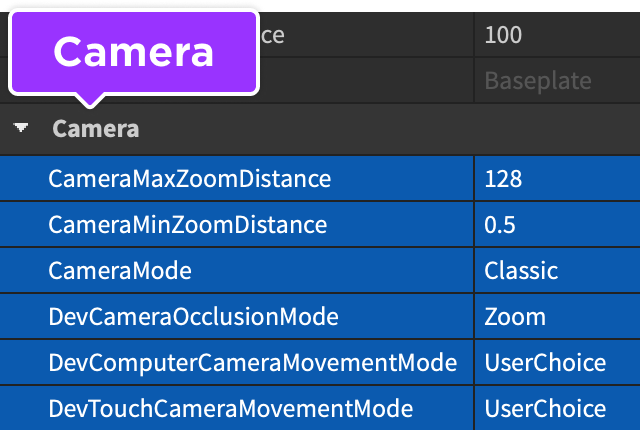
The default zoom distance often prevents the camera from getting close enough for a true first-person perspective.
- Select StarterPlayer in the Explorer window.
- Find
MinimumCameraZoomDistancein the Properties panel. - Change the value from 0.5 to 5 or higher.
Why Adjust This?: Increasing this value prevents the camera from clipping through the character head. It ensures smooth transitions and natural eye-level positioning.
Combine Settings for True First-Person

Achieve a polished experience by stacking multiple configuration changes.
- Set
EnableMouseLockOptionto false. - Change
MinimumCameraZoomDistanceto 5. - Optionally set
CameraModeto “LockFirstPerson”.
This combination eliminates unwanted locking while positioning the camera naturally at head level.
Distinguish Shift Lock From First-Person Mode
A common confusion involves the relationship between mouse locking and perspective modes. These are two separate systems within the engine.
Clarify the Difference Between Features
Disabling the lock does not stop players from switching to first-person view. You can have one without the other.
| Feature | Purpose | Controlled By |
|---|---|---|
| Shift Lock | Locks camera to mouse movement | EnableMouseLockOption |
| First-Person Mode | Changes camera perspective | Player toggle or CameraMode |
✅ Best Practice: Disable the lock but allow first-person mode for better immersion and control.
Troubleshoot Missing Properties in Studio
Developers sometimes report that EnableMouseLockOption is missing from their interface. This usually stems from UI filtering or outdated software versions.
Resolve Visibility Issues
Follow these steps if you cannot locate the necessary property in your panel.
- Update Studio: Ensure you are running the latest version of Roblox Studio.
- Use Filters: Type “mouse” in the Properties filter bar to isolate the setting.
- Check Selection: Verify you have selected StarterPlayer and not a child script.
- Run Command: Use the Command Bar method to force the property update.
Refresh Tip: After running the command, save your place and reload the editor if the property still does not appear visually.
Optimize Settings for FPS Game Modes
If you are building a shooter or simulation, removing the lock is just the beginning. Proper optimization ensures a professional feel.
Essential Configuration Checklist

Use this table to verify your game settings match industry standards for first-person experiences.
| Setting | Recommended Value | Location |
|---|---|---|
EnableMouseLockOption |
false |
StarterPlayer |
MinimumCameraZoomDistance |
5 |
StarterPlayer |
CameraMode |
"LockFirstPerson" |
StarterPlayer |
DevEnableMouseLock |
false |
Player (Server) |
Prevent Common Camera Glitches
Avoid mixing built-in mouse lock features with custom camera scripts. Use RunService.RenderStepped for smooth client-side adjustments instead.
Pro Tip: Add a print statement in your server script to confirm when the lock is disabled for debugging purposes.
Verify Current Deprecation Status
Confusion arose in mid-2023 when Roblox announced plans to deprecate EnableMouseLockOption. Many developers worried their games would break.
Confirm Feature Availability in 2024
Rest assured that the feature is fully functional and supported today.
- ✅
EnableMouseLockOptionis not deprecated. - ✅ It works in all modern versions of Roblox Studio.
- ✅ It remains the recommended method for global control.
Community Advice: Search the Roblox Developer Forum before troubleshooting. Most issues regarding this feature have already been solved by other creators.
Frequently Asked Questions About Removing Shift Lock
Does disabling Shift Lock stop first-person mode?
No. Disabling Shift Lock does not prevent players from using first-person view. These are independent settings. Players can still toggle perspectives freely unless you restrict CameraMode separately.
Can I enable Shift Lock for a player via script?
Yes, you can set Player.DevEnableMouseLock = true inside a Server Script. This explicitly allows a specific player to use the feature even if global settings differ.
Why is EnableMouseLockOption missing from my panel?
This often happens due to UI filtering or selecting the wrong object. Ensure you select StarterPlayer and use the filter bar. If it persists, use the Command Bar to force the setting.
What happens if I disable the lock while a player uses it?
If a player has the lock active and you set the property to false, they cannot unlock the mouse themselves. The state remains locked until the server sets the property back to true.
Do I need a script to remove Shift Lock globally?
No. You do not need a script for global removal. Simply unchecking EnableMouseLockOption in the StarterPlayer properties is sufficient for most games.
Key Takeaways for Removing Shift Lock in Roblox
Mastering how to remove Shift Lock gives you full control over player camera behavior. Start by disabling EnableMouseLockOption in StarterPlayer for a simple global solution. Use server-side scripts with DevEnableMouseLock for dynamic, zone-based control.
Remember to adjust MinimumCameraZoomDistance to fix first-person viewing angles. These small tweaks create a polished experience that feels natural to players. Test your changes in Play mode today to ensure smooth camera performance.