You just installed your new smart lock and need to know exactly how to lock Eufy door systems quickly. Whether you are leaving for work or settling in for the night, ensuring your home is secure without hassle is a top priority for every homeowner.
This guide details every method to secure your entry, from manual buttons to remote app commands. You will learn troubleshooting tips and automation tricks to keep your home safe with zero guesswork.
Engage the Manual Lock Button Directly
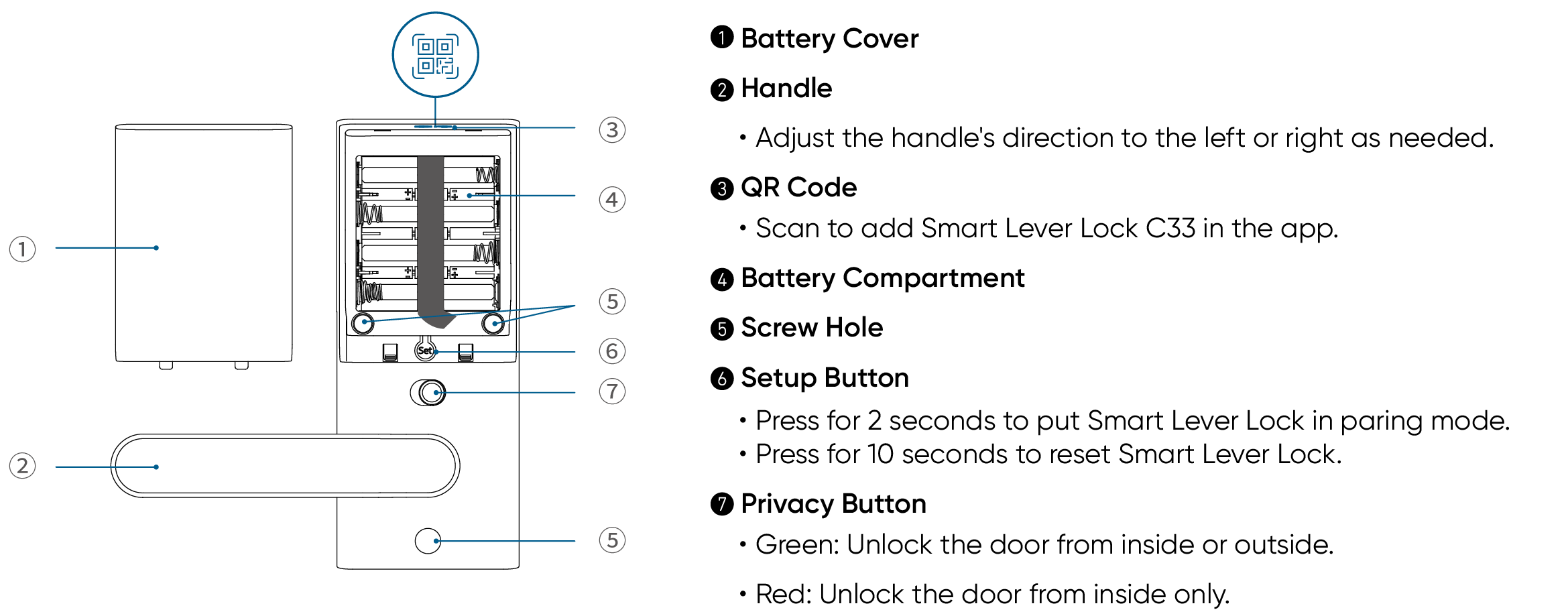
Physical interaction remains the most reliable way to secure your home when you are standing right at the threshold. Most Eufy smart locks feature a dedicated button on the interior faceplate designed for this exact purpose.
Press the Dedicated Lock Button
Locate the button marked with a lock icon on the inside of your door. Press this button firmly to engage the deadbolt immediately. Listen for the distinct mechanical click that confirms the bolt has fully extended into the frame.
Rotate the Manual Knob if Equipped
Some specific Eufy models utilize a rotating knob instead of a push button. Turn the interior knob clockwise until you feel resistance. Verify the lock status by checking for a visual light indicator or listening for the engagement sound.
Note: Always ensure your door is completely closed before pressing the button or turning the knob. The lock mechanism may fail to engage if the door is even slightly ajar.
Secure Your Door Using the EufySecurity App

Remote access gives you the power to lock your door from anywhere in the world. This feature is ideal for those moments when you leave the house and wonder if you actually secured the entry.
Launch the EufySecurity Application
Open the EufySecurity app on your smartphone or tablet. Ensure your device has an active internet connection via Wi-Fi or cellular data. Tap on your specific door lock icon from the main dashboard to access its control panel.
Execute the Remote Lock Command
Tap the large Lock icon displayed on the screen. Wait a few seconds for the app to communicate with your lock through the HomeBase or direct Bluetooth connection. Look for the “Locked” status update and a green checkmark to confirm success.
Pro Tip: If the app shows a delayed response, pull down on the screen to refresh the status. A stable internet connection is required for real-time updates.
Automate Security with Auto-Relock Features

Forgetfulness is the enemy of home security. The Auto-Relock function eliminates human error by automatically securing your door after a set period following closure.
Configure Automatic Locking Timers
Navigate to the Settings menu within your lock’s interface in the app. Select the Auto-Relock option and toggle the feature to the “On” position. Choose your preferred delay timer, such as 30 seconds, 1 minute, or 5 minutes.
Understand Auto-Relock Behavior
Once enabled, the door will lock itself every time it closes and the timer expires. This ensures you never leave your home unprotected due to a momentary lapse in memory.
Warning: Do not enable Auto-Relock if young children or pets are inside without supervision. This feature could accidentally trap them outside if the door closes behind them.
Control Locks With Voice Assistant Commands
Voice control offers a hands-free way to secure your home while your hands are full of groceries or luggage. Eufy integrates seamlessly with major smart home ecosystems.
Lock Using Amazon Alexa
Ensure the EufySecurity skill is enabled in your Alexa app. Simply say, “Alexa, lock the front door.” Alexa will process the request and verbally confirm that your Eufy door is now locked.
Lock Using Google Assistant
Link your Eufy account to the Google Home app for voice activation. State the command, “Hey Google, lock the door.” Google will verify the action and send the signal to engage your smart lock.
Tip: Use specific device names like “front door” or “back door” if you have multiple Eufy locks installed to avoid confusion.
Schedule Reminders to Lock Your Door
Building a habit of locking your door is easier with digital assistance. Scheduled reminders act as a safety net for your nightly routine.
Create Custom Lock Alerts
Go to Settings and select Notifications in the EufySecurity app. Tap Add Reminder to create a new alert. Set a specific time, such as 10:00 PM, and select the days you want the reminder to appear.
Customize Notification Preferences
Choose whether you want a sound, vibration, or just a visual banner. This ensures you get nudged to lock up even if you are distracted by other tasks.
Best For: Families with busy schedules or individuals who frequently forget to check their locks before bed.
Verify Lock Status From Any Location
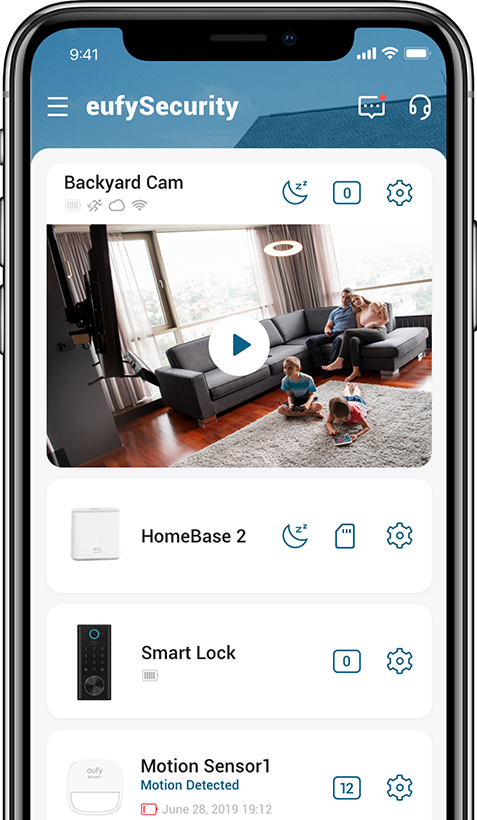
Peace of mind comes from knowing the exact state of your home security at any given moment. You can check this status whether you are in the next room or another country.
Check Real-Time Status Updates
Open the EufySecurity app and view the main dashboard. The status will clearly display as Locked, Unlocked, or Unknown. If the status seems outdated, refresh the page to get the latest data from your lock.
Monitor Activity Logs
Review the activity log to see exactly when the door was locked or unlocked. This helps you track family movements or verify that a cleaning service locked up after leaving.
Note: Real-time status updates require your HomeBase to be powered on and connected to the internet.
Troubleshoot Common Locking Failures
Even smart devices occasionally face connectivity or mechanical issues. Knowing how to diagnose these problems ensures your security is never compromised.
Resolve Unresponsive Lock Buttons
If the physical button does not work, check your battery levels immediately. Low power can prevent the motor from driving the bolt. Also, ensure the door is aligned correctly, as misalignment can stop the lock from engaging.
Fix App Connection Errors
When the app says “Lock Failed,” check your Wi-Fi signal strength. Restart your router and HomeBase to clear any network glitches. Ensure your EufySecurity app is updated to the latest version.
Common Fix: Move closer to the door if using Bluetooth directly. Physical obstacles like thick walls can sometimes block the signal.
Utilize Physical Backup Keys for Access
Smart locks are convenient, but mechanical backups are essential for emergencies. Every Eufy smart lock comes with traditional keys for this purpose.
Insert the Mechanical Key
Locate the keyhole on the exterior unit, often hidden behind a magnetic cover. Insert your backup key and turn it clockwise to extend the deadbolt manually.
Store Keys Securely
Keep your backup keys in a safe but accessible place, such as a lockbox or with a trusted neighbor. Never leave spare keys in obvious spots like under the doormat.
Warning: Relying solely on digital methods without a physical backup can leave you stranded if the battery dies completely.
Prevent Unauthorized Access With Privacy Modes
There are times when you may want to disable remote features for added privacy or security. Eufy provides tools to restrict how your lock can be operated.
Enable Privacy Mode
Access Settings in the app and find Privacy Mode. Toggling this on disables all remote commands and voice controls. Only physical keys, keypad codes, or interior buttons will work while this is active.
Manage Temporary Access Codes
Create time-limited PIN codes for guests or service providers. Go to Access Codes and set specific start and end times. This allows you to grant access without giving full control of your lock.
Use Case: Ideal for when you have house sitters or maintenance workers who need entry only during specific hours.
Frequently Asked Questions About How to Lock Eufy Door
Can I lock my Eufy door if the Wi-Fi is down?
Yes, you can still lock the door manually using the interior button or knob. You can also use the physical backup key or valid access codes stored on the device itself.
Why does my Eufy lock say “Lock Failed” in the app?
This error usually indicates a weak connection between the app and the lock. Check your internet connection, ensure the HomeBase is online, and verify that the door is fully closed.
How do I make my Eufy door lock automatically?
You must enable the Auto-Relock feature in the EufySecurity app settings. Once activated, the door will lock itself automatically after your chosen time delay following closure.
Can I lock my Eufy door using my voice?
Yes, if you link your Eufy account to Amazon Alexa or Google Assistant. You can then use simple voice commands like “Lock the front door” to secure your home hands-free.
What happens if the battery dies while the door is unlocked?
The lock will not function electronically until batteries are replaced. You must use the provided mechanical backup key to lock or unlock the door manually in this scenario.
Key Takeaways for Locking Your Eufy Door Securely
Securing your home is simple when you know how to lock Eufy door systems using the right methods. Whether you choose manual buttons, smartphone apps, or voice commands, each option provides a reliable layer of protection for your family.
Remember to enable Auto-Relock for daily convenience and check your battery levels regularly to prevent failures. If you continue to experience technical difficulties despite troubleshooting, contact Eufy support at +1 (800) 988-7973 or use their 24/7 live chat for immediate assistance.