You step outside to find your SignsTek smart lock frozen, unresponsive, or refusing your fingerprint. This frustrating glitch often happens after power surges, software updates, or simple battery fatigue. When your security system fails, a proper SignsTek door lock reset is usually the fastest way to restore access and peace of mind.
This guide details every method to reboot your device, from a quick soft reset to a full factory wipe. You will learn how to identify your specific model, execute the correct reset sequence, and recover your admin access without calling a locksmith.
Identify Your Specific SignsTek Lock Model
Reset procedures vary slightly between different SignsTek units, so identifying your exact model is the critical first step. Using the wrong method on the wrong device can lead to confusion or failed attempts.
Locate the Interior Label
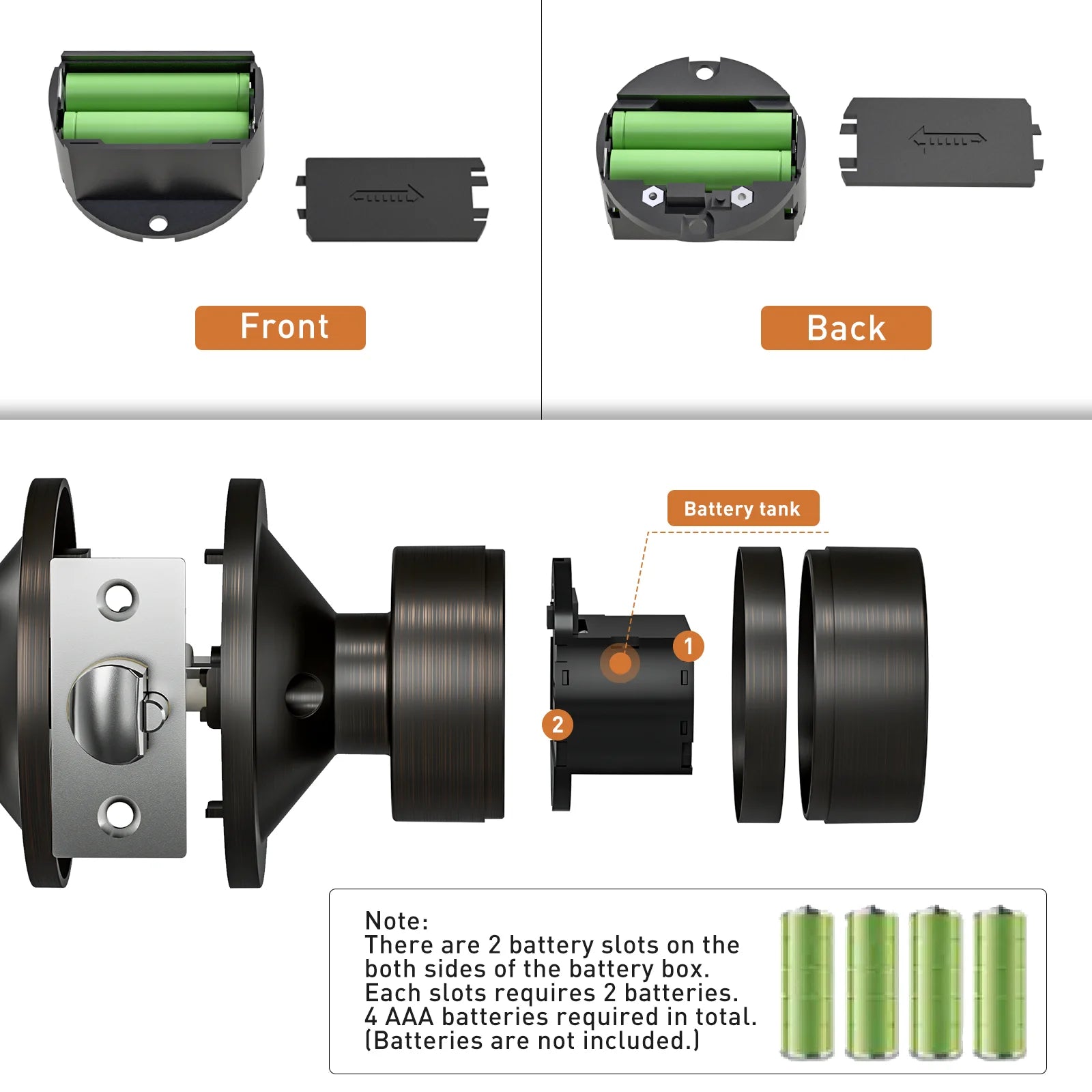
Remove the interior battery cover or mounting plate to find the manufacturer label. This white sticker displays the model number, which typically starts with “STK-” followed by letters and digits like L1, L2, or Z1. Write this number down before proceeding with any reset.
Verify via the SignsTek App
If your lock still maintains a partial Bluetooth or Z-Wave connection, open the SignsTek mobile application. Navigate to the “Devices” tab, select your specific lock, and view the “Device Info” section to confirm the model and current firmware version.
Match Your Keypad Design
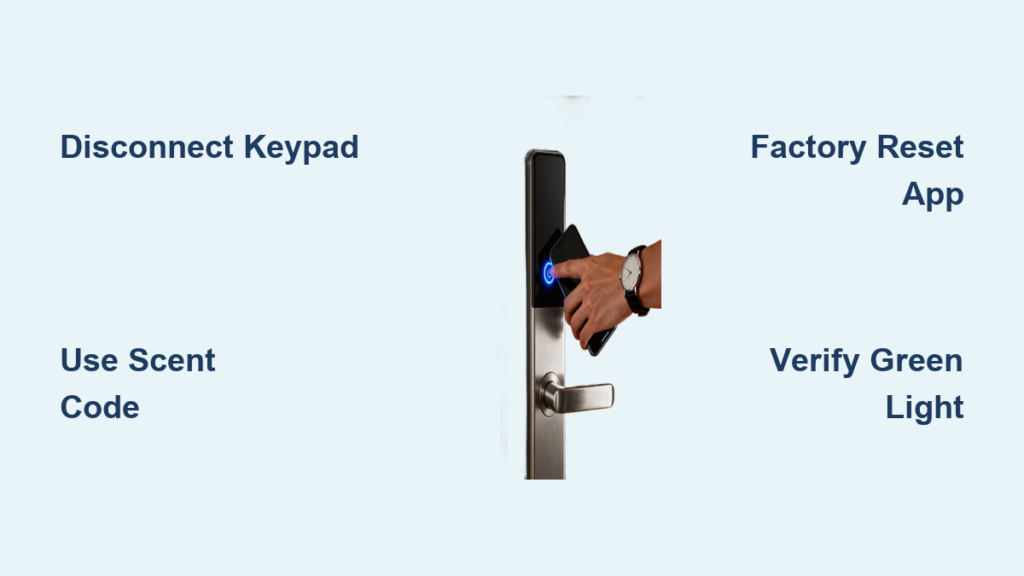
Visual identification helps if the label is worn. The STK-L1 features a round chrome keypad with a fingerprint sensor on the handle. The STK-L2 has a square black or silver keypad without biometric features. The STK-Z1 offers Z-Wave compatibility with a flush-mounted keypad and LED status indicators.
Perform a Soft Reset to Reboot the System

A soft reset restarts the lock’s operating system without deleting your user codes or settings. This is the best first step if your keypad is lagging or the app is not syncing.
Hold the Reset Button
Locate the small recessed button near the battery compartment on the interior unit. Use a paperclip to press and hold this button for exactly 10 seconds. Watch for the exterior keypad to flash red or blue briefly before turning off and restarting automatically.
Wait about 30 seconds for the system to fully reboot. Test your keypad entries or fingerprint sensor to see if normal operation has returned.
Cycle the Battery Power
If the button method fails, remove all four AA batteries from the interior compartment. Wait at least 60 seconds to allow any residual electrical charge to dissipate completely from the circuit board.
Reinsert fresh alkaline batteries, ensuring you match the polarity markings exactly. The lock should chime or flash upon successful power-up, indicating a clean boot.
Pro Tip: Always use high-quality alkaline batteries. Weak or leaking batteries often cause the very glitches that require a reset in the first place.
Execute a Factory Reset to Wipe Data
Use a factory reset only when soft resets fail or if you have lost the administrator code. This process erases all user data, fingerprints, and access codes, returning the lock to its original out-of-box state.
Press Reset for 20 Seconds
With batteries installed, press and hold the interior reset button for a full 20 seconds. The keypad will flash rapidly in multiple colors before going dark, then power back on with a single beep after 10 seconds.
This sequence confirms the factory reset is complete. You must now set up a new administrator code and re-enroll all users from scratch.
Use the Keypad Code Sequence
Select models like the STK-L1 allow a factory reset via a specific keypad combination. Enter the sequence * + # + 1 + 2 + 3 + 4 + 5 + 6 on the exterior panel.
Listen for three rapid beeps and a red flash to confirm the wipe. Release the buttons immediately after this confirmation to avoid interrupting the process.
Warning: This action deletes every access code permanently. Only proceed if you have physical access to the door and time to reconfigure the entire system.
Recover Admin Access After Reset
Once a factory reset completes, the lock requires a new administrator code to function. This master code controls all future user additions and settings changes.
Enter Setup Mode Immediately
Within 30 seconds of the reset completion, press the * key on the exterior keypad. The lock will emit a long, distinct beep indicating it is ready to accept a new administrator configuration.
If you miss this window, the lock may revert to a locked state, requiring you to repeat the factory reset process to try again.
Program Your New Master Code
Enter a unique 6-digit code of your choice and press #. The lock will beep twice to acknowledge the entry. Re-enter the exact same 6-digit code and press # again to confirm.
A final chime confirms your new admin code is active. Write this code down and store it in a secure physical location immediately.
Re-enroll Users and Fingerprints
Press *, enter your new admin code, and press # to access the menu. Select option 1 to add user codes or option 3 to enroll fingerprints on biometric models.
Follow the voice prompts to set 6 to 8-digit codes for family members. For fingerprints, place the finger on the sensor 3 to 5 times until the system confirms successful enrollment.
Troubleshoot Common Reset Failures
Even with precise steps, some locks may resist resetting due to power issues or hardware faults. Here is how to diagnose and fix these common problems.
Address Lack of Response
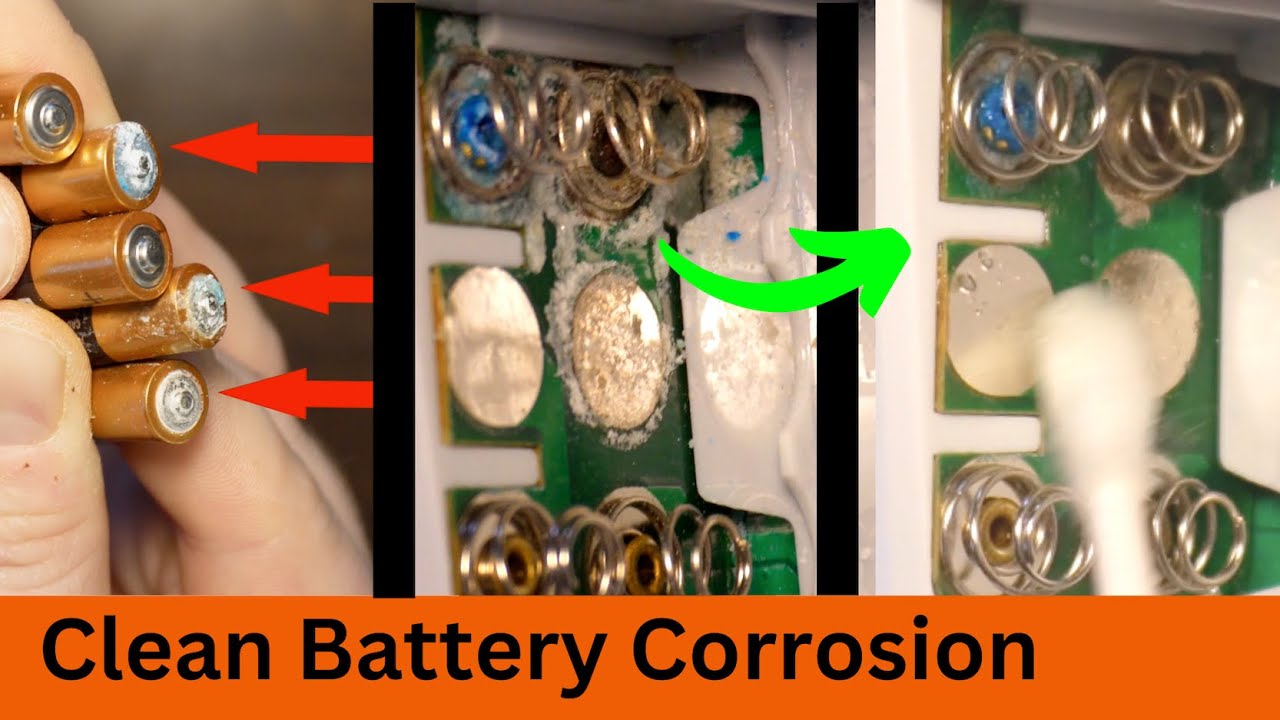
If the lock does nothing during a reset attempt, the batteries are likely too weak to power the reset function. Replace them with brand-new alkaline cells and ensure the contacts are clean and free of corrosion.
Check the battery compartment for any white or green corrosion buildup. Clean any residue gently with a cotton swab and a tiny amount of vinegar, then let it dry completely before reinserting batteries.
Fix Keypad Illumination Issues
If the lights turn on but the keypad rejects your reset codes, the unit may not have fully cleared its memory. Disconnect the batteries for two full minutes and retry the 20-second reset hold.
Persistent issues here often indicate a corrupted internal process that requires a longer power disconnection cycle to resolve completely.
Stop Reboot Loops
If your lock flashes and restarts continuously, the firmware may be corrupted beyond a simple user reset. Avoid using third-party tools to try and fix this, as they can cause permanent damage.
Use your mechanical key override to access your home and contact SignsTek support for professional reflashing services or a potential warranty replacement.
Prevent Future Lockout Scenarios
Smart locks offer great convenience, but regular maintenance prevents the need for frequent resets and potential lockouts.
Replace Batteries Biannually
Change your batteries every six months regardless of the low-battery warning status. SignsTek locks use power-hungry components that can become unstable as voltage drops over time.
Set a recurring calendar reminder or use smart battery labels to track installation dates effectively.
Secure Your Admin Credentials
Store your administrator code in a fireproof safe or a secure physical wallet. Never save this critical code in unencrypted digital notes or cloud documents that hackers could access.
Provide a trusted neighbor or family member with a backup mechanical key and a secondary user code for emergencies.
Update Firmware Regularly
Open the SignsTek app once a month to check for available firmware updates. These updates fix known bugs, improve response times, and patch security vulnerabilities.
Ensure your phone’s Bluetooth is enabled and stand within 3 feet of the lock during the update process to prevent data corruption.
Contact SignsTek Support for Assistance
If all reset methods fail and your lock remains unresponsive, direct support from the manufacturer is your best option.
Prepare Your Device Information
Gather your model number, serial number, and proof of purchase before contacting support. Having a short video demonstrating the issue can significantly speed up the troubleshooting process.
Reach out via email at support@signstek.com or call their official support line listed on their website for the most current contact details.
Check Warranty Coverage
SignsTek typically provides a one-year limited warranty covering manufacturing defects. If your lock cannot be reset due to a hardware fault, you may qualify for a repair or replacement.
Keep your original receipt handy, as proof of purchase is mandatory for all warranty claims.
Frequently Asked Questions About SignsTek Door Lock Reset
Does resetting my SignsTek lock delete my fingerprint data?
A soft reset keeps your data intact, but a factory reset erases all fingerprints and user codes. You must re-enroll every user after a factory reset.
What is the default admin code after a factory reset?
There is no default code after a factory reset. You must create a new 6-digit administrator code immediately upon reboot to use the lock.
How long do I hold the reset button for a factory reset?
You must hold the reset button for exactly 20 seconds to trigger a factory reset. Holding it for only 10 seconds will perform a soft reset instead.
Can I reset my SignsTek lock remotely via the app?
No, you cannot perform a factory reset remotely via the app for security reasons. You must physically access the interior battery compartment to press the reset button.
What happens if I forget my new admin code after a reset?
If you lose the new admin code, you must perform another factory reset to wipe the system and create a fresh code. There is no backdoor recovery method.
Why is my lock not responding to the reset button?
Dead batteries or corrosion on the battery terminals often prevent the reset signal from registering. Try new batteries and clean the contacts before trying again.
Key Takeaways for a Successful SignsTek Door Lock Reset
Restoring your security system starts with identifying your model and choosing the right reset method. A soft reset fixes minor glitches without data loss, while a factory reset clears all data to resolve serious access issues. Always keep fresh batteries on hand and store your new admin code securely to prevent future lockouts.
Take action now by checking your battery levels and verifying your model number. If your lock is still acting up, follow the factory reset steps carefully to regain full control of your home security today.