Real estate agents often face frustration when a property showing stalls because they cannot figure out how to unlock a Supra lock box. These secure devices protect homeowner keys while allowing authorized access through a specific smartphone app and personal PIN code.
This guide details the exact steps to activate the unit, release the key safely, and resecure the housing after your visit. You will learn to troubleshoot common connection errors and avoid mistakes that lead to lockouts or equipment damage.
Install and Configure the Supra App Correctly
Your smartphone serves as the primary key for accessing these secure storage units. Proper setup before arriving at the property saves valuable time and prevents client delays during showings.
Download and Sign Into Your Account
Visit the Apple App Store or Google Play Store to download the official Supra app. Open the application and sign in using your unique authorized credentials provided by your local MLS or brokerage.
Enable Bluetooth and Location Services
The device communicates exclusively through Bluetooth technology. Navigate to your phone settings and ensure both Bluetooth and location services are turned on fully. Disabling either feature stops the app from finding the lockbox nearby.
Verify Your Authorization Status
Check your account dashboard to confirm your certification is current and fees are paid. Expired accounts or lapsed permissions will block the system from releasing any keys regardless of your input.
Trigger the Lockbox Mechanism Manually
Physical interaction with the device is required to wake up the internal electronics. This step bridges the gap between the physical hardware and your digital credentials.
Locate the Recessed Plunger Button
Find the small, circular plunger button located at the very base of the unit. This tactile switch is designed to be pressed upward to initiate the power sequence within the device casing.
Watch for the Red LED Signal
Press the plunger firmly upward with your thumb. A red LED light should flash or remain lit immediately. This visual cue confirms the battery has power and the device is searching for a paired smartphone.
Position Your Phone for Detection
Hold your mobile device within three inches of the lockbox face. The app must detect the hardware signal automatically once the plunger activates the discovery mode.
Release the Key Using Your PIN Code
Digital authorization is the core security layer of the system. You must prove your identity before the mechanism allows the physical key to emerge from the container.
Tap Obtain Key on the Interface
Select the “Obtain Key” button displayed prominently on your app screen. This action starts the secure handshake protocol between your phone and the lockbox hardware.
Enter Your Personal PIN Carefully
Input your unique 4-to-6 digit PIN when prompted. You have only three attempts to enter the correct code before the system imposes a temporary security lockout on your account.
Pro Tip: Tap each digit deliberately rather than rushing. Waiting for the screen to register each number prevents accidental typos that waste your remaining attempts.
Resolve Connection Timeouts
Restart the process if the app fails to respond or displays a timeout error. Press the plunger again, toggle your Bluetooth off and on, or move away from large metal objects causing interference.
Retrieve the Key From the Compartment

Mechanical action is required even after digital approval. The key does not fall out automatically but waits for a final physical trigger to extend into the retrieval slot.
Press the Plunger Upward Again
Apply firm upward pressure to the plunger button one more time. This specific motion engages the internal motor that slides the key carrier from the sealed chamber to the outside access point.
Confirm Full Key Extension
Observe the key as it extends completely into the open slot. If the key only partially appears, press the plunger once more to complete the cycle without forcing the mechanism.
Remove and Inspect the Key Gently
Pull the key straight out of the holder with a steady hand. Verify that the tag matches the property address you intend to show before walking toward the front door.
Re-Secure the Lockbox After Showings
Protecting homeowner security requires returning the key immediately after your visit. Proper relocking ensures the property remains safe and the device is ready for the next agent.
Return the Key to the Internal Slot
Slide the key back into the designated compartment immediately after closing the front door. Align the carrier perfectly so it sits flush within the housing before attempting to close the lid.
Close the Housing Until It Clicks
Push the outer casing down firmly until you hear a distinct click. This sound indicates the internal locking pins have engaged and the unit is sealed against tampering.
Verify the Reset Status
Press the plunger one final time to check the system state. A flashing red light that fades away confirms the unit is reset, locked, and ready for the next authorized user.
Troubleshoot Common Access Issues
Technical glitches or environmental factors can sometimes interrupt the unlocking process. Knowing how to diagnose these problems helps you resolve them quickly on site.
Address Lack of Response From Device
Check the battery status in your app if the red light fails to appear. Clean any dirt or moisture from the plunger area and try pressing at a slightly different angle to ensure contact.
Fix Key Not Released Errors
Confirm your account has active showing rights for that specific listing address. Re-login to the app to refresh your credentials if the system claims you lack permission.
Resolve Stuck Key Mechanisms
Never yank or pry at a key that feels stuck inside the slot. Press the plunger up to three times to reset the internal motor and allow the gears to realign naturally.
Prevent Security Risks and Operational Errors
Maintaining the integrity of the lockbox system protects both the homeowner and your professional reputation. Adhering to strict security protocols prevents unauthorized access and liability issues.
Protect Your Personal PIN
Never share your PIN with clients, colleagues, or anyone else. Your code is traceable to your specific account, and sharing it violates security policies that can lead to suspension.
Avoid Leaving Keys Exposed
Do not leave the key sitting outside the box while talking to clients. Always reinsert the key immediately after use to prevent theft or loss during the showing.
Report Malfunctioning Units Promptly
Use the “Report Issue” feature in the app if a device fails repeatedly. Providing photos and location details helps maintenance teams repair or replace faulty hardware quickly.
Follow Best Practices for Reliable Access
Preparation is the key to smooth property access. Adopting a few simple habits ensures you never leave a client waiting due to technical difficulties.
Test the App Before Arriving
Open the Supra app ten minutes before your scheduled showing time. Logging in early ensures your credentials are fresh and your Bluetooth connection is stable.
Carry a Backup Device When Possible
Pair a secondary tablet or phone with your account if your workflow allows. Having a backup device ensures you can still access properties if your primary phone battery dies.
Keep Software Updated Regularly
Install all app updates as soon as they become available on your device. New versions often include critical bug fixes that improve Bluetooth reliability and connection speed.
Frequently Asked Questions About Supra Lock Boxes
What should I do if I enter my PIN incorrectly three times?
Your account will temporarily lock for security reasons. You must wait for the designated timeout period to expire or contact your local MLS support to reset your access attempts immediately.
Can I use the Supra app without an internet connection?
You need an initial internet connection to log in and sync your showing schedule. However, the actual Bluetooth communication with the lockbox works offline once your credentials are cached.
Why is the red LED light not turning on when I press the plunger?
This usually indicates a dead battery in the lockbox or debris blocking the button. Try cleaning the plunger area first, then report the unit for battery replacement if it still fails.
How do I know if the lockbox is securely locked after use?
Listen for a solid click when closing the casing. You can also press the plunger once more; if the light flashes briefly and turns off, the unit has successfully reset and locked.
Is it possible to unlock a Supra lock box without the app?
No, modern Supra systems require the smartphone app for authentication. Physical keypads are no longer standard, and the app is the only authorized method to release the key.
Key Takeaways for Unlocking Your Supra Lock Box
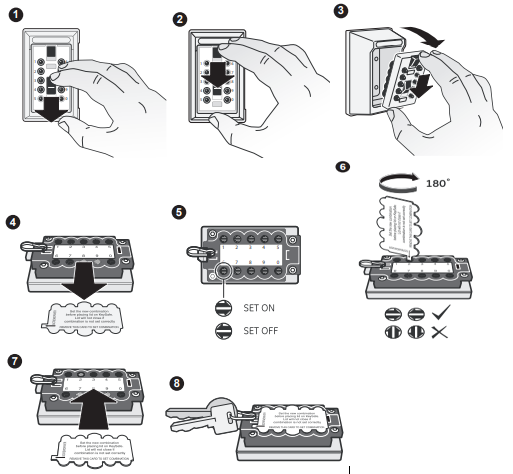
Mastering how to unlock a Supra lock box ensures professional and efficient property showings. Remember to activate the plunger, enter your PIN correctly, and always resecure the unit immediately after use.
By following these steps and maintaining your app settings, you protect homeowner security while streamlining your daily workflow. Start your next showing with confidence by testing your connection before you arrive.