Is your keyboard typing in all capital letters no matter how many times you press the key? You are likely facing a common Windows setting where the Shift key overrides the standard toggle behavior. This guide explains exactly how to unlock Caps Lock by adjusting your system configuration or using virtual tools.
We will walk you through the specific steps to restore normal function on Windows 10 and 11 without needing new hardware. You will learn to diagnose software glitches, use the On-Screen Keyboard for immediate relief, and customize key settings to prevent future frustration.
Diagnose Why Caps Lock Won’t Turn Off
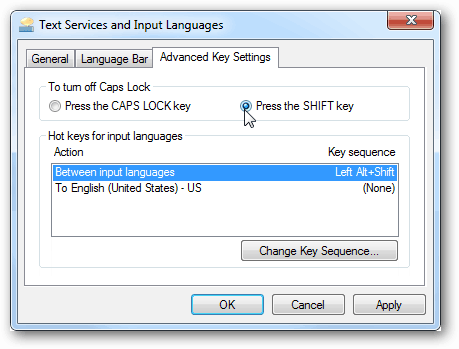
When the Caps Lock indicator stays on despite repeated pressing, the issue is almost always a software configuration rather than broken hardware. Windows includes a feature designed to help users turn off uppercase mode by pressing the Shift key, but this often confuses users who expect the Caps Lock key to work as a standalone toggle.
Perform the Shift Key Test
Press the Shift key once while the Caps Lock light is on. If your typing immediately returns to lowercase, you have confirmed the cause. This setting forces the Shift key to act as the deactivation switch, rendering the physical Caps Lock key ineffective for turning off the mode.
Understand the Toggle Conflict
This behavior creates a conflict where the physical key only turns the mode on, while the Shift key turns it off. Most users prefer the standard behavior where one press activates the mode and a second press deactivates it. Changing this setting restores the intuitive toggle function you expect from your keyboard.
Restore Standard Caps Lock Toggle in Windows
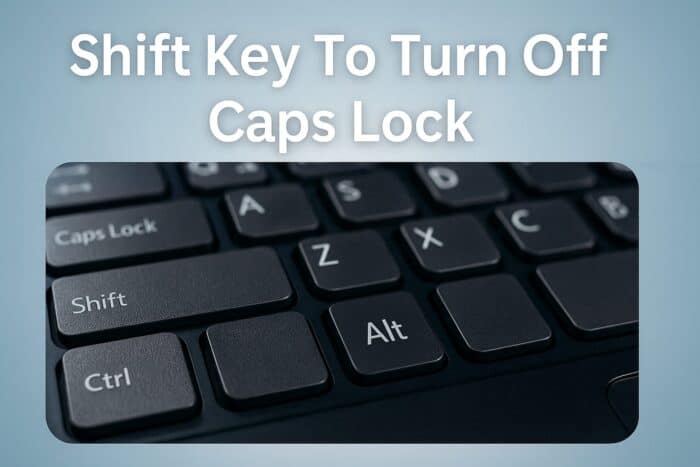
Fixing this issue requires navigating to your Advanced Keyboard Settings to change how the operating system interprets the key press. The following steps apply to both Windows 10 and Windows 11, though the menu paths differ slightly between versions.
Steps for Windows 11 Users
- Press
Windows + Ito open the Settings menu. - Select Time & Language from the left sidebar.
- Click on Typing in the main pane.
- Scroll down and select Advanced keyboard settings.
- Click the link labeled Input language hot keys.
- In the pop-up window, go to the Advanced Key Settings tab.
- Select the option Press the CAPS LOCK key to turn off CAPS LOCK.
- Click Apply and then OK to save changes.
Steps for Windows 10 Users
- Open Settings by pressing
Windows + I. - Navigate to Devices and select Typing.
- Click on Advanced keyboard settings on the right side.
- Choose Input language hot keys under the related settings section.
- Switch to the Advanced Key Settings tab in the dialog box.
- Ensure Press the CAPS LOCK key to turn off CAPS LOCK is selected.
- Hit Apply followed by OK.
Verify the Fix Works
Test your keyboard by pressing the Caps Lock key once to turn on the indicator light. Press it a second time to ensure the light turns off and your typing returns to lowercase. This confirms you have successfully learned how to unlock Caps Lock using native system settings.
Use On-Screen Keyboard for Immediate Relief
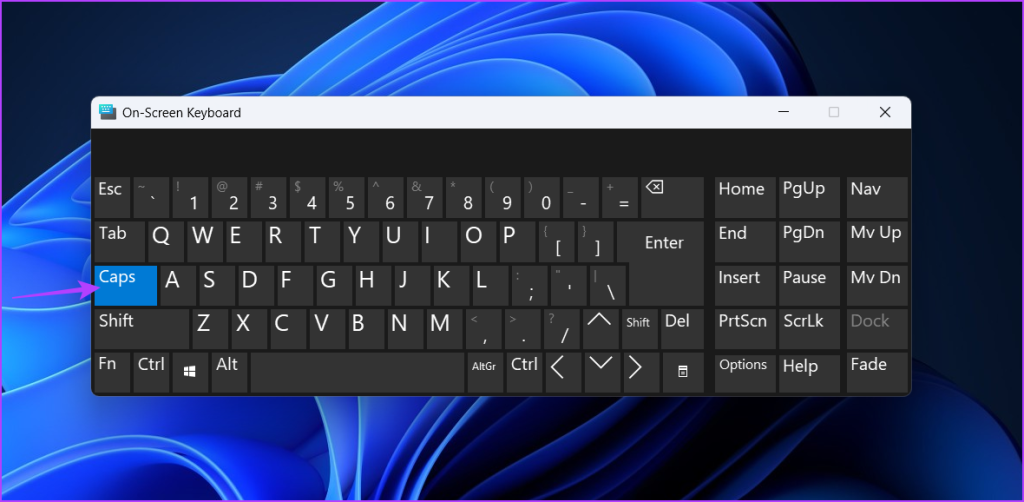
If you cannot type your password or need an instant fix without navigating menus, the built-in On-Screen Keyboard provides a reliable workaround. This tool bypasses physical key inputs and directly toggles the state within the operating system.
Launch the Virtual Keyboard
- Press
Windows + Rto open the Run dialog box. - Type
oskinto the text field and press Enter. - Wait for the On-Screen Keyboard window to appear on your display.
- Locate the Caps Lock key, which is usually found near the left Shift key.
Toggle the State Virtually
Observe the virtual Caps Lock key to see if it appears highlighted or shaded, indicating it is active. Click this virtual key once to toggle the state off. The highlight should disappear, and your physical keyboard will immediately begin typing in lowercase again.
Ideal Scenarios for This Method
- Unlocking your computer when your password fails due to uppercase letters.
- Testing if the operating system recognizes the toggle command.
- Working around a physically damaged or sticky key until you can repair it.
Check for Hardware and Driver Issues
If changing settings and using the virtual keyboard do not resolve the problem, you may be dealing with a hardware failure or a driver conflict. Physical debris or outdated software can sometimes prevent the key from registering correctly.
Inspect for Physical Obstructions
Examine the Caps Lock key closely for dust, crumbs, or sticky residues. Use a can of compressed air to blow out debris from under the keycap. Avoid using liquids or prying off the key unless you have experience with keyboard repair, as this can cause further damage.
Test with an External Keyboard
Connect a USB keyboard to your computer and press its Caps Lock key. If the external keyboard toggles correctly while your built-in keyboard remains stuck, the issue is likely a hardware fault in your laptop or original keyboard. This test helps isolate the problem to the specific device.
Update Keyboard Drivers
- Right-click the Start button and select Device Manager.
- Expand the Keyboards category in the list.
- Right-click your keyboard device and select Update driver.
- Choose Search automatically for drivers to let Windows find updates.
- Restart your computer if an update is installed or if the issue persists after uninstalling the device.
Customize or Disable Caps Lock Entirely
Many users accidentally hit Caps Lock and prefer to disable it or remap it to a more useful function. You can achieve this through registry edits for a permanent disable or use Microsoft PowerToys for a safer, reversible remapping.
Disable Caps Lock via Registry
Warning: Editing the registry can affect system stability. Back up your registry before proceeding.
1. Press Windows + R, type regedit, and press Enter.
2. Navigate to HKEY_LOCAL_MACHINE\SYSTEM\CurrentControlSet\Control\Keyboard Layout.
3. Right-click the right pane, select New, and choose Binary Value.
4. Name the new value Scancode Map.
5. Enter the specific binary data to map the key to null (do nothing).
6. Restart your computer for the changes to take effect.
Remap Using Microsoft PowerToys
- Download and install Microsoft PowerToys from the Microsoft Store.
- Open the application and select Keyboard Manager.
- Click Remap a key to start a new configuration.
- Set the physical Caps Lock key to act as Left Ctrl, Escape, or another function.
- Save the configuration to instantly change how the key behaves without system risks.
Understand Caps Lock Behavior and Etiquette
Knowing how Caps Lock interacts with other keys helps you avoid errors and use your keyboard more effectively. It is also important to understand digital etiquette to ensure your messages are received correctly.
Interaction with the Shift Key
The Shift key behaves inversely when Caps Lock is active. If Caps Lock is on, holding Shift while typing a letter produces a lowercase character. Conversely, if Caps Lock is off, holding Shift produces an uppercase character. This logic allows for flexible typing without constantly toggling modes.
Digital Communication Etiquette
Typing entire sentences in uppercase is widely interpreted as shouting or aggression in online communication. Avoid using Caps Lock for emphasis in emails or chat messages. Instead, use formatting options like bold or italics to highlight important points without appearing rude.
Password Entry Best Practices
Accidental Caps Lock activation is a leading cause of login failures. Always check for the LED indicator or on-screen warning before typing sensitive passwords. Type a test character in the username field first to verify the case sensitivity before submitting your credentials.
Frequently Asked Questions About Unlocking Caps Lock
Why does pressing Shift turn off my Caps Lock?
This happens because a specific Windows setting called “Press the Shift key to turn off Caps Lock” is enabled. This feature overrides the standard toggle behavior, requiring you to press Shift to deactivate uppercase mode instead of the Caps Lock key itself.
How do I make the Caps Lock key work normally again?
You must change the setting in Advanced Key Settings within your Windows Typing options. Select the option Press the CAPS LOCK key to turn off CAPS LOCK to restore the standard toggle function where one press turns it on and another turns it off.
Can I use Caps Lock on the login screen if my keyboard is stuck?
Yes, you can use the On-Screen Keyboard to toggle the state. Press Windows + U or Windows + R then type osk to launch the virtual keyboard, and click the Caps Lock key on the screen to disable it before entering your password.
Does Caps Lock affect numbers and symbols?
No, Caps Lock only affects alphabetical characters (A-Z). Numbers, punctuation marks, and special symbols remain unchanged regardless of whether Caps Lock is active. You must still use the Shift key to type alternative symbols on number keys.
Is it safe to disable Caps Lock completely?
Yes, disabling or remapping Caps Lock is safe and often recommended for users who accidentally trigger it frequently. You can use tools like Microsoft PowerToys to remap the key to a different function like Ctrl or Escape without modifying critical system files.
Key Takeaways for Fixing Caps Lock Issues
Learning how to unlock Caps Lock usually involves changing a single setting in your Windows Typing options. By ensuring the system is configured to let the Caps Lock key toggle the state, you eliminate the confusion caused by the Shift key override.
Use the On-Screen Keyboard for immediate access if you are locked out of your account, and consider remapping the key if accidental activation is a frequent problem. These steps will restore your typing efficiency and prevent future login errors.